the-resources Setup
Use this guide if you're looking to try out these CSS tutorials within the-resources project.
Note: Not every tutorial in this repo works seemlessly with the-resources-- yet! Some require that you have direct access to the HTML. You could put this HTML directly into your markdown file, but it might take a bit of practice to get exactly what you want. Tutorials that require you to edit HTML will say so at the top.
Watching this quick video may be enough to get you up and running:
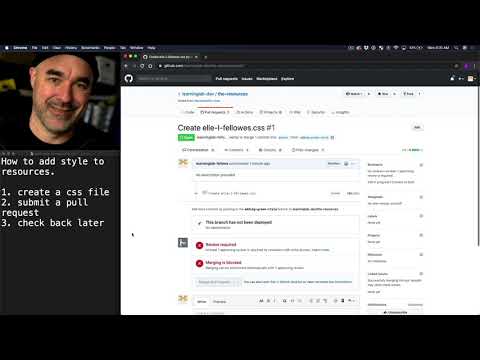
But here are the steps, if you prefer the written word. 😄
- Open
the-resourcesrepo and navigate into the/public/stylesheetsfolder.

- Click
Create new fileand give your file an apt name. This could be your name or the name of your theme. Just make sure your filename has no spaces, capital letters, or other punctuation and that you add the extension.csswhen you create it.

- Write your tutorial CSS directly in the new file editor! We'll commit it when you're finished.
Note: Because the-resources is live on the internets, you won't be able to see your styles until someone on the LL staff approves your pull request. We know this is a bummer! But we want to make sure only things you're proud of end up online. If you'd like to have live previews of your styles and are willing to spend a bit of extra time setting up, you can follow the instructions under Running a Local Server below.
- When you've completed the tutorial, it's time to commit your CSS file. To do this, scroll down to the bottom until you see "Commit new file". In the top box there add a commit message explaining what you're adding to the repo. A good template is "Add new stylesheet [name of your styles]". Then select "Create a new branch for this commit" and name your branch. Again, a good name is something like "[your first name]-[your last initial]-styles". Remember there should be no spaces and no capital letters in the name of your branch. Finally click
Propose new file.

- That should have taken you to the "Open a pull request" screen. Here you can assign reviewers by clicking the little gear by Reviewers on the right, if you want someone specific to look at your PR. Otherwise, just click
Create pull requestto submit it. We'll check it out and get back to you shortly!

- Once you're received word that your pull request has been approved and merged, check out resources.learninglab.xyz/styled to view all the markdown pages with your new styles!
When you're ready to do more with styling, you can run a local copy of resources.learninglab.xyz! This will allow you to view your changes immediately in the browser without submitting PRs or waiting for approval. Of course, you should still submit a PR when you've got something you're happy with, so your new styles can go live on the full site.
To setup a local server, follow these steps:
-
Make sure you have
node.jsandnpminstalled on your machine. You can do this with a package manager like Homebrew, or you can grab the installer for your operating system here. -
Open your command line interface app (on a Mac this is Terminal; on Windows you can download a similar program).
-
Decide where you'd like to save your local copy of the repo. Then use the command
cdto navigate to that location. For example, if you want to put the copy on your desktop, you'd entercd desktopin the command line. -
Once you're in the right place, head over to
the-resourcesrepo on github. There you'll click the green buttonClone or downloadand copy the url that pops up. -
Back in your terminal, enter
git clone [paste url link]. This should start the process of downloading the repo. -
When the download finishes, enter
cd the-resourcesto navigate into your new folder. Then install its dependencies by typingnpm i. This might take a minute or two. -
Finally, you can enter
npm run devstartand then navigate tolocalhost:3000in your browser. You should see a copy of the resources! Now, when you make an save changes to your local copy of the repository, you updates should appear here in the browser right away.