Repository navigation
Using the plugin
Template has general pattern with 8 elements:
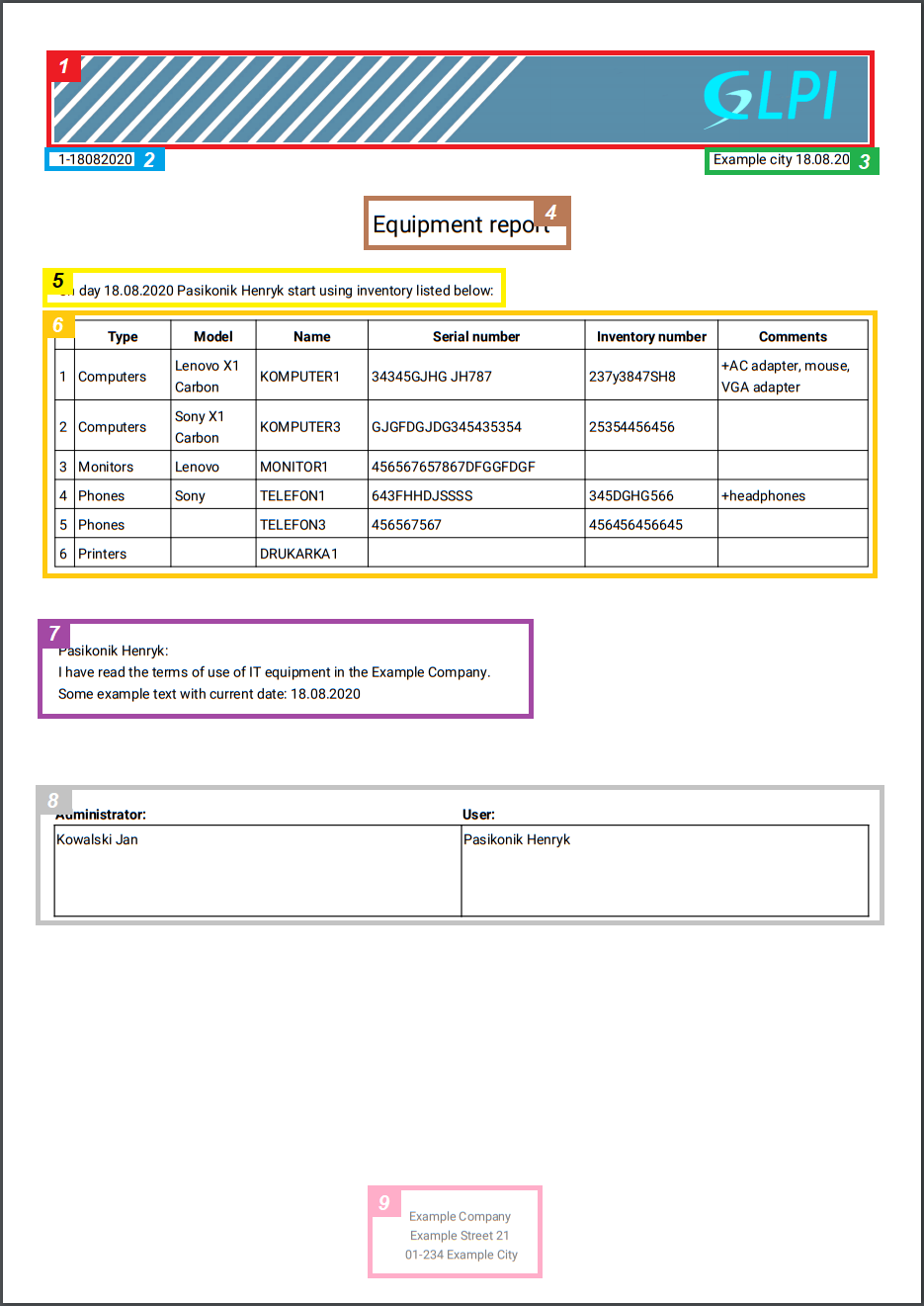
As you can see, there are few sections:
- Logo (optional) - for now is 10:1 fixed aspect ratio
- Number of protocol - name of file in DB
- City and date - configurable
- Name - configurable and mandatory
- Upper content - configurable and optional
- Table of items
- Content - configurable and optional
- Signature
- Footer - configurable
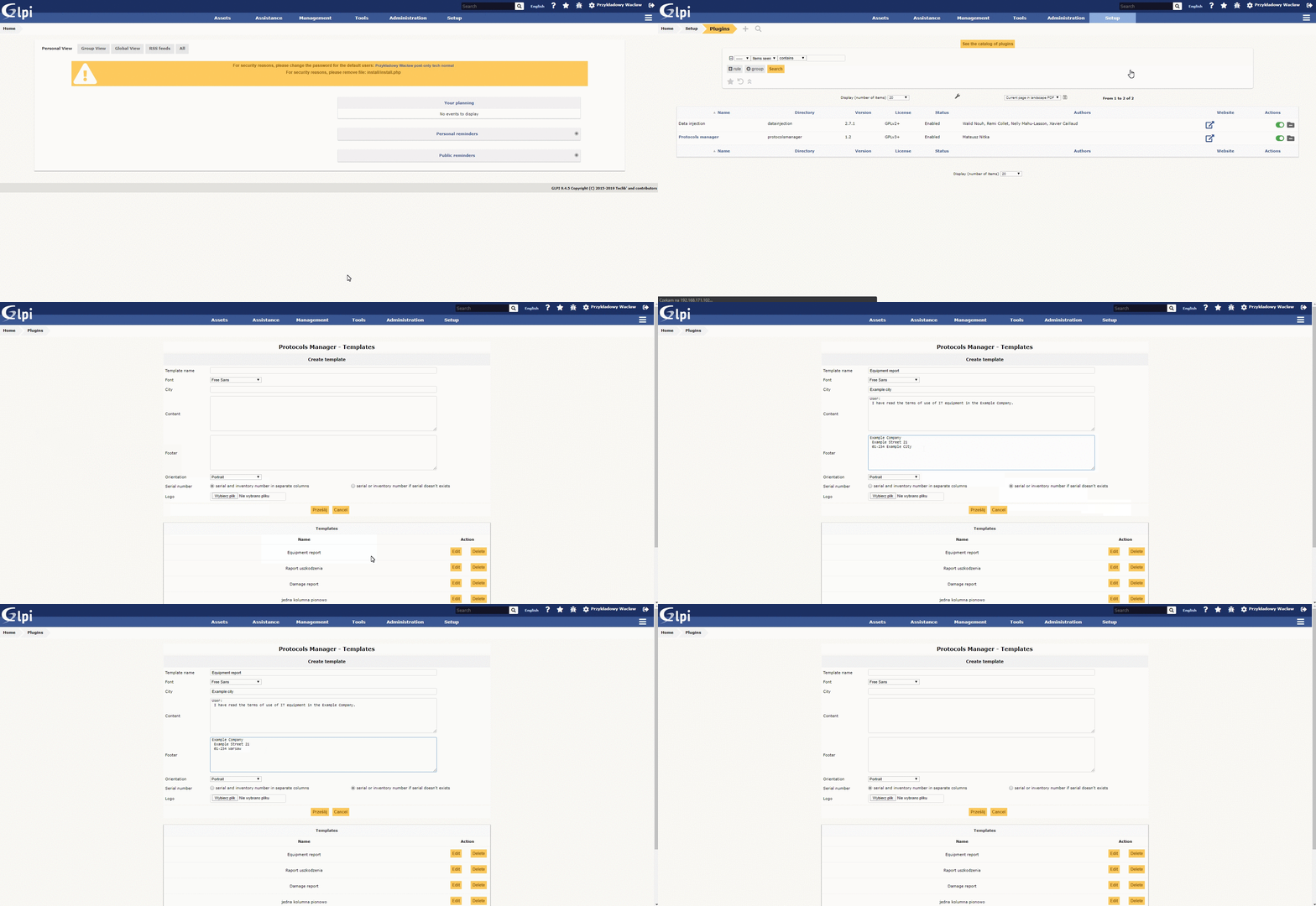
If you want to create or edit templates, go to Setup -> Plugins -> Protocols Manager. To create new template, just fill empty fields and select options you want and click save. To edit template, choose one from list above and click edit.
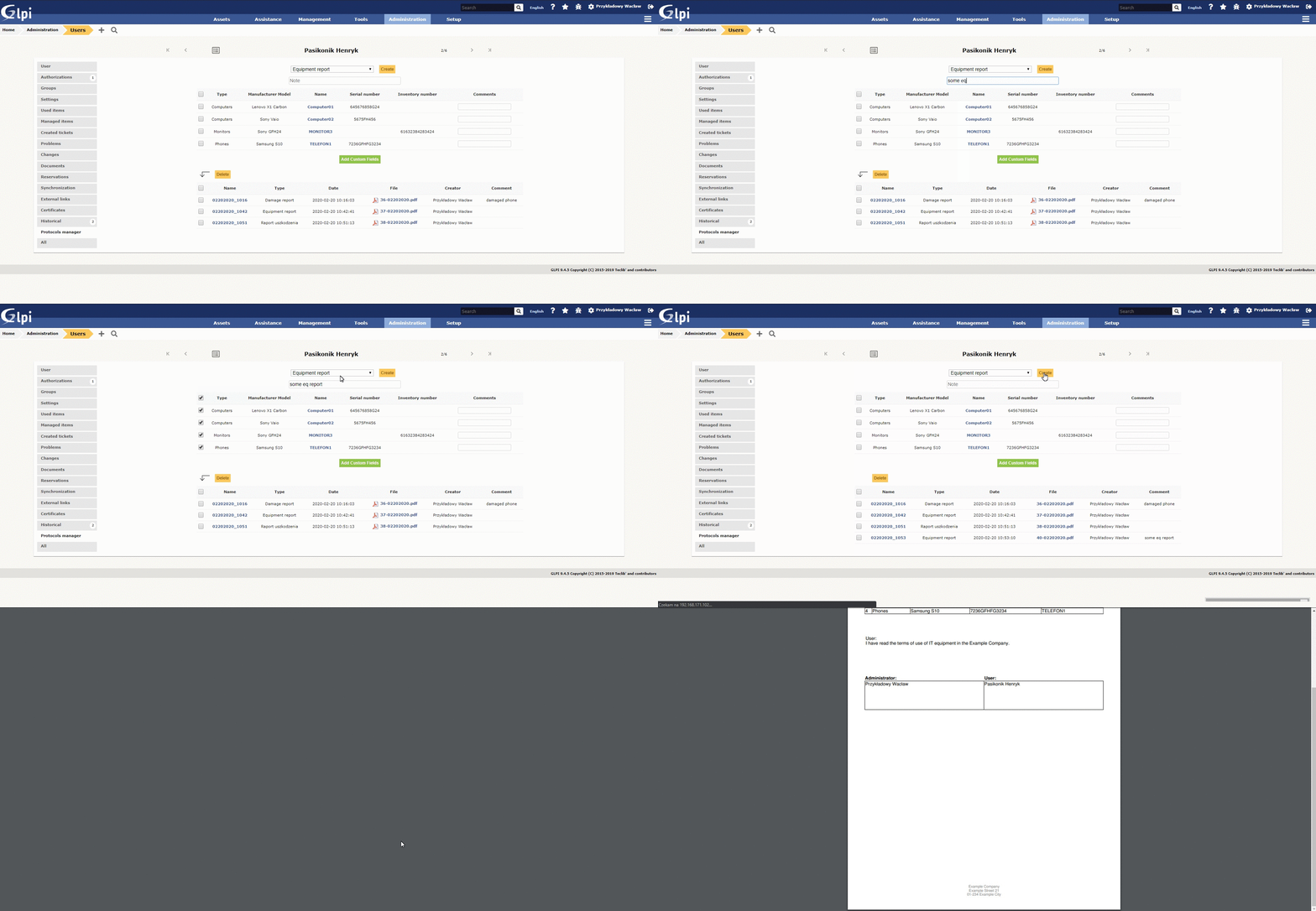
Go to Administration -> Users and click on user. Then go to Protocols Manager tab. As you can see, there is a list with user inventory (you must assign it in GLPI). To create protocol, select items, template and click on 'Create'. You can make a note for export if you want. You can make comments to every item. There isn't 'Comments' column in protocol if you don't fill at least one comment to item.