



A feature-rich MIDI-to-key player for in-game instruments, built with Svelte 5, Tauri v2, and Rust.
If you liked this project, consider contributing or giving a 🌟 star. Thank you~| Game | Bundled instruments |
|---|---|
| Genshin Impact | 11 instruments, including lyres, zithers, pianos, percussion, Ukulele, Nightwind Horn, and Lingering Euphonia |
| Wuthering Waves | 21-key instrument layout |
| Neverness to Everness (NTE) | Piano (21-key and 36-key), Guitar |
| Where Winds Meet | Guqin |
| Blue Protocol: Star Resonance | Piano (61-key and 88-key) |
| Sky: Children of the Light | String, keyboard, wind, and percussion instruments |
| Roblox | Piano (61-key and 88-key) |
| Heartopia | Piano variations, plus string, wind, and percussion instruments in two-row and three-row layouts |
| Core Keeper | Pocket Piano, Drumkit, Cello, Harp, Flute, and Ocarina |
| Harry Potter: Magic Awakened (HPMA) | Piano (14-key and 36-key) |
See the Support wiki page for details on supported games, instruments, and keyboard layouts.
- Launch the desktop app and finish setup. If an old AMP profile is found, you can choose to import it.
- Choose your game, instrument, and keyboard layout. Make sure they match what you have open in the game.
- Add your
.midor.midifiles with the + button (Import MIDI files) in Songs, or set a MIDI folder in Settings. - Open Tracks and keep the parts you want to play. A melody track is a good place to start!
- Turn on Listen Mode to hear the song through your speakers first. Adjust the key, transpose, speed, and note settings as needed.
- To play in-game, open the game's instrument, turn Listen Mode off, and press Play. AMP tries to focus the selected game on Windows, macOS, and X11; losing game focus pauses playback.
On Wayland, game output requires permission through the desktop's Remote Desktop portal, independently of physical MIDI input. After allowing keyboard access, switch to the game within 30 seconds; song playback waits until AMP loses focus. It sends keys to the focused app and cannot identify the game. Global hotkeys use the desktop's Global Shortcuts portal and show the desktop-approved bindings in Settings. Desktops without either portal report the unavailable feature. See Getting Started for platform permissions and troubleshooting.
On macOS, the app isn't notarized, so the first launch is blocked by Gatekeeper. Open it once, then click Open Anyway in System Settings → Privacy & Security (or run xattr -cr "/Applications/Auto MIDI Player.app"). If game keys stop working after an update, re-enable AMP under Privacy & Security → Accessibility. See First launch on macOS.
Note
macOS and Linux support should work in theory, however it isn't tested due to my system's limitations, so help in testing would be appreciated!
Here's where the main controls live. The annotated screenshots use the current interface with AMP Demo data and no connected MIDI device; your library and available instruments may look different.
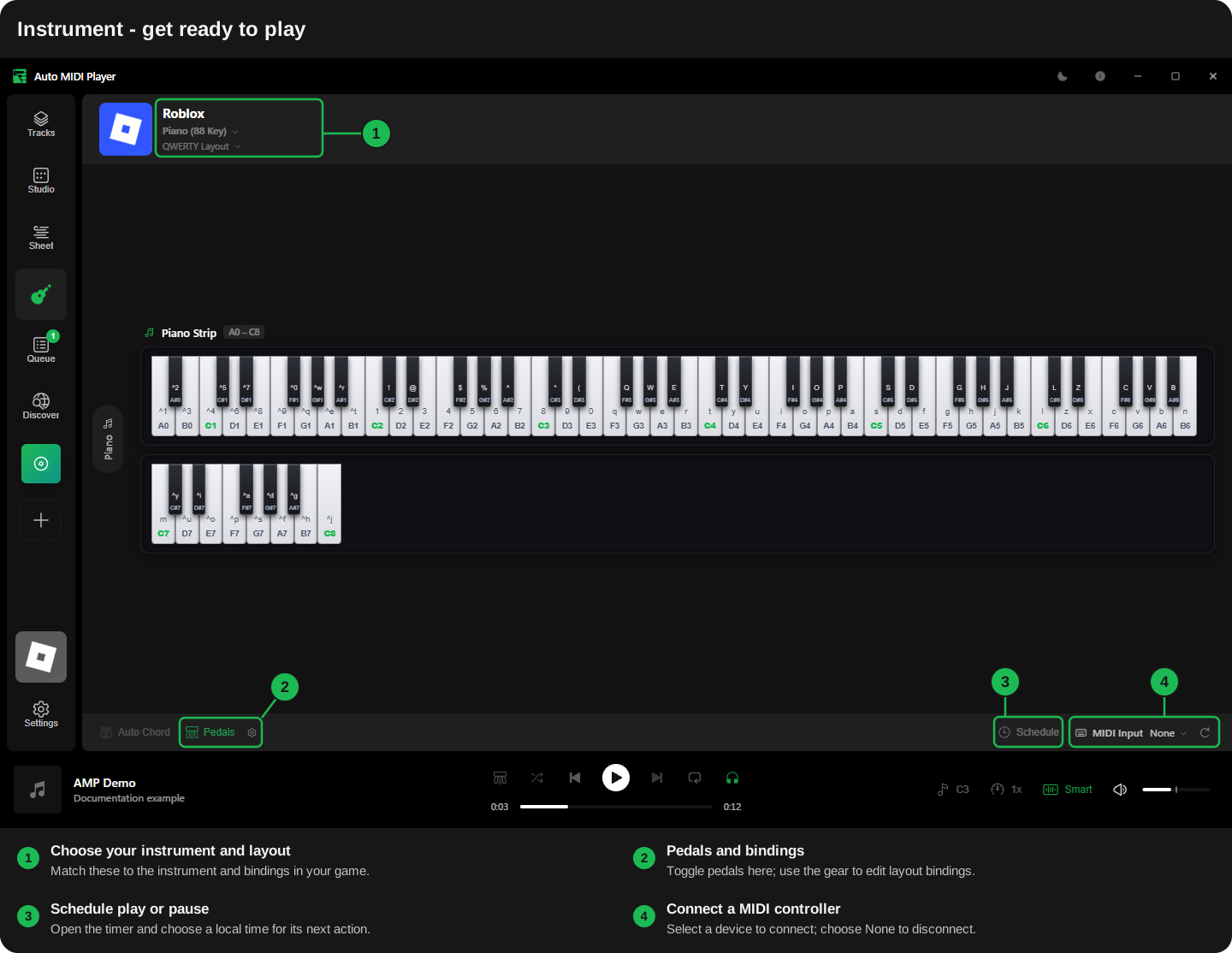
- Per-song tuning - Save key offsets, transpose, speed, BPM, and note settings for the selected instrument, the whole game, or all games. Instrument settings take priority, so the same song can suit different instruments without setting everything up again.
- Smart transpose and Auto Correct - Help notes fit instruments with limited ranges or missing sharps and flats. You can also choose Up, Down, or Ignore transposition.
- Hold Notes and Tap Threshold - Choose between short key taps and held notes, or tap short notes while holding longer ones.
- Merge Notes - Join repeated notes of the same pitch when they overlap or fall within your chosen gap. Try it on songs where repeated taps sound too busy.
- Auto Chord - Match groups of notes to built-in chord keys on instruments that support them, such as Genshin's Ukulele and Lingering Euphonia.
- Pedals and layouts - Use sustain, sostenuto, and soft pedals where supported. Edit pedal bindings for the selected keyboard layout, and choose from QWERTY, QWERTZ, AZERTY, Dvorak, and other available mappings.
Every game's instrument behaves a little differently. Preview your changes, then try a short section in-game to find what sounds best.
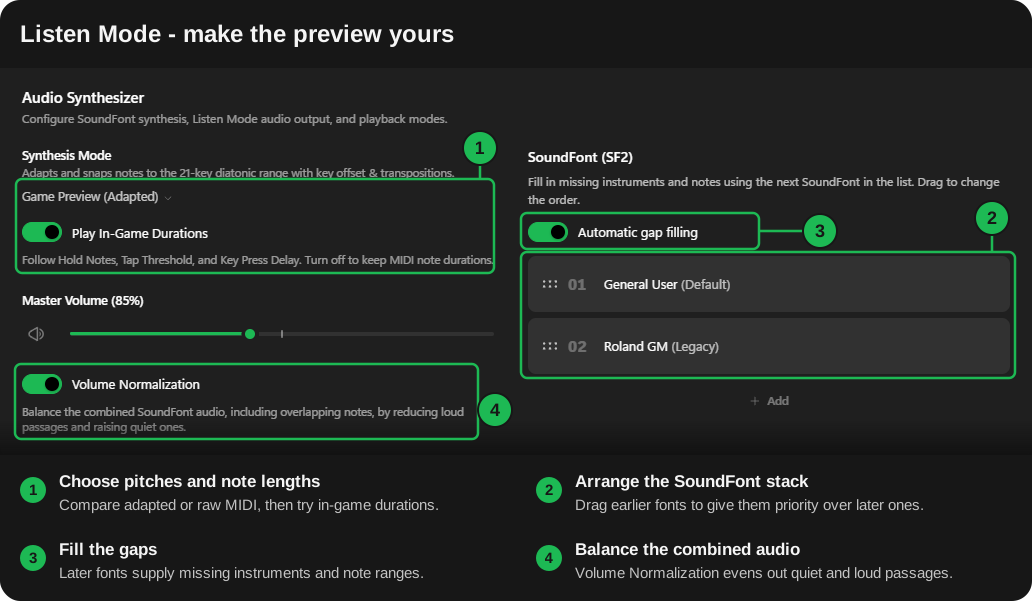
Listen Mode plays through your speakers using SoundFonts instead of sending game keys. Pick Game Preview (Adapted) to hear notes fitted to the selected instrument, or Full Chromatic (Raw) to hear the original MIDI pitches.
- Play In-Game Durations makes the adapted preview follow Hold Notes, Tap Threshold, and Key Press Delay. Leave it off to keep the MIDI's note lengths.
- Use the bundled GeneralUser GS and Roland GM SoundFonts, or add your own
.sf2files. - Turn on Automatic gap filling and arrange SoundFonts in priority order. Missing instruments and notes fall back to the next font in the list.
- Custom SoundFonts stay at their original locations. Removing one from AMP removes its registration and leaves your file alone.
- Volume Normalization balances the combined SoundFont audio, including overlapping notes, so quiet and loud passages are easier to listen to.
Choose a device from MIDI Input on the Instrument page and start playing-selecting it connects automatically. AMP remembers the device and tries to reconnect to it at launch when it is available. After unplugging and reconnecting it, use Refresh to reconnect.
Live input works with Listen Mode or game output, including note velocity and supported pedals. You can play along with a MIDI song, and the connection stays active while you browse other pages or minimize to the tray. Select None to disconnect. See the MIDI input guide for details and platform permissions.
- Tracks - Play several MIDI tracks together, mute parts you don't need, or solo a part to hear it clearly.
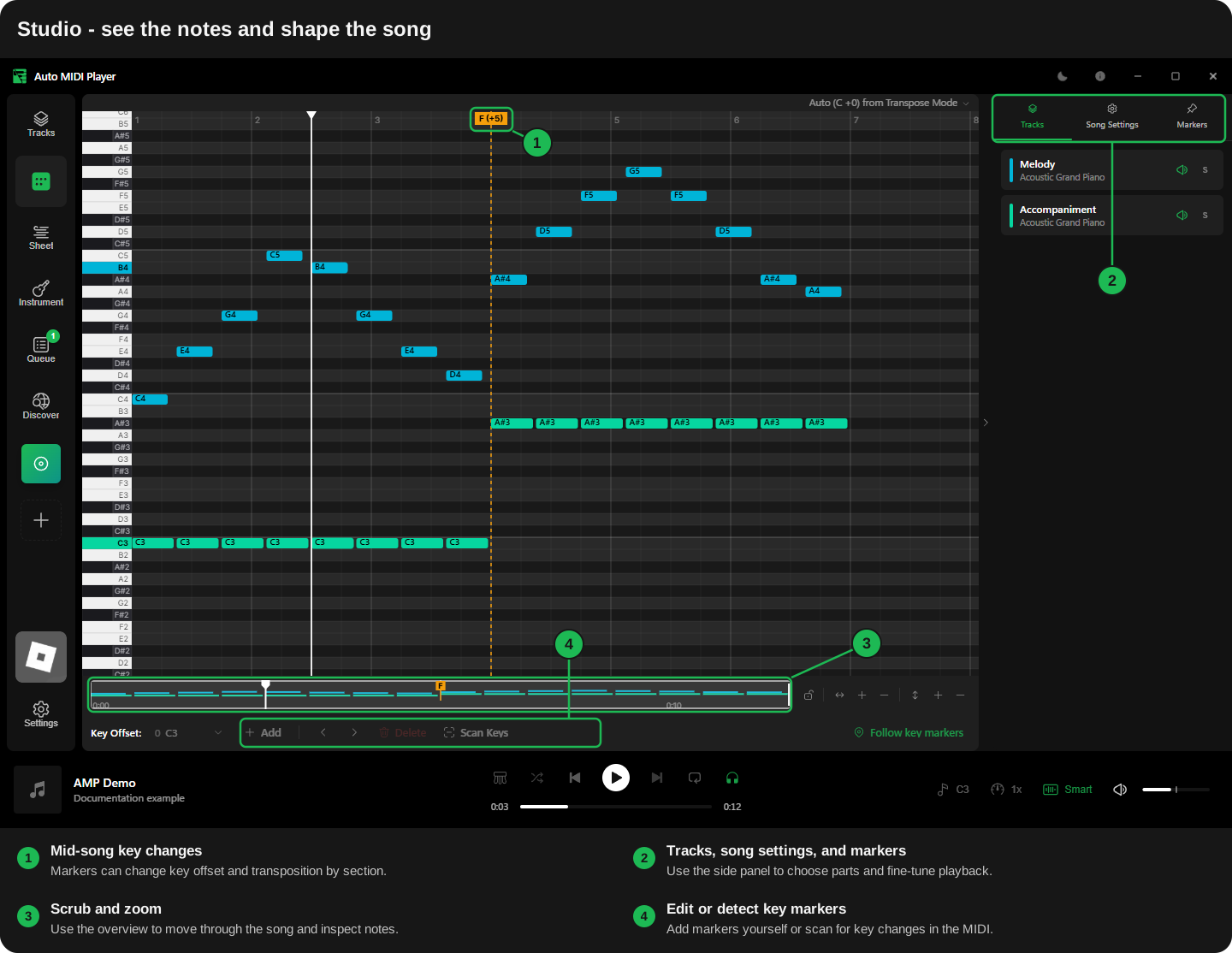
- Studio - Follow a live piano roll with note highlighting, a keyboard guide, timeline scrubbing, zoom, and playhead tracking. Adjust tracks and song settings from the side panel.
- Key change markers - Add mid-song key offsets in Studio or detect key changes from the MIDI, then edit or disable the markers as needed.
- Piano Sheet - Turn the selected song into keyboard notation using your current layout. Adjust the delimiter, grouping, and spacing, and check the legend when a symbol is unfamiliar.
- Import MIDI files or scan a MIDI folder, search your library, and sort by title, artist, duration, or date added.
- Switch to custom order to drag songs into the order you want. AMP remembers your ordering and scroll positions.
- Add songs to the queue, reorder what's coming next, and use shuffle or repeat for longer listening sessions.
- Schedule a play or pause action from the Instrument page. The timer keeps running while you change pages; keep AMP open for it to fire.
- System tray - Choose whether minimizing or closing hides AMP to the tray. Use the tray menu to play/pause, skip ahead, reopen the window, or exit.
- Playback shortcuts - Use configurable hotkeys and native media controls, including while the window is minimized. Availability depends on your desktop and its permissions.
- Make it yours - Choose light, dark, or system theme, change the accent color, and switch between English and Simplified Chinese.
- Migration - Import an existing legacy library and settings during setup when detected. Old-data cleanup is optional.
- System and diagnostics - View system information, open logs, and adjust diagnostic settings from Settings when you need help with an issue.
Discover (online MIDI) and New Playlist are not implemented yet. Discover is available in the legacy app.
MIDI files (.mid and .midi) contain notes, timing, and instrument instructions rather than recorded audio. AMP lets you choose which tracks to play, then either turns their notes into game keys or plays them through a SoundFont. The selected instrument, keyboard layout, and tuning settings decide which notes fit.
There is no guarantee that a game permits automated input or that using AMP will avoid account restrictions. Check the game's current rules and use it at your own risk. See the Disclaimer for more information.
For setup details, feature walkthroughs, safety notes, and troubleshooting, use the wiki links below.
- Wiki Home
- Disclaimer
- Getting Started
- How To Use
- How it Works
- Support (Supported Games, Instruments, and Keyboards)
- FAQ General
- Git
- Node.js (v24+) & pnpm
- Rust (MSVC toolchain on Windows, native toolchain on Linux/macOS)
- Tauri platform prerequisites
git clone --branch main https://github.com/Jed556/AutoMidiPlayer.git
cd AutoMidiPlayer

# Install frontend dependencies
pnpm install --frozen-lockfile

# Start Tauri desktop app in dev mode (Vite + Rust)
pnpm dev

# Build native packages for the current platform
pnpm build
pnpm dev starts both the frontend and native backend. pnpm dev:frontend starts Vite alone for frontend work; the app's library, settings, and playback require Tauri and do not work as a standalone browser app.
For platform prerequisites, package formats, and custom game or instrument definitions, see Getting Started. Windows, macOS, X11, and Wayland have different permission and focus requirements; a successful build does not verify physical MIDI or in-game behavior on every platform.
Please read CONTRIBUTING.md.
For adding notes, instruments, games, or keyboard mappings, see Getting Started.
Use conventional commit messages so the versioning workflow can assign a version to each eligible commit on main. It amends the version files into those commits, preserving author and committer dates while changing commit SHAs. See Commit Messages and Versioning for bump rules, previews, and how to sync your local branch after the bot runs.
This project was originally forked from sabihoshi/GenshinLyreMidiPlayer v4.0.5 and later detached into its own repository to enable multi-game support and features that do not fit the original Genshin Impact-only design. Huge thanks for the original work! 🔥
Special thanks to Lunaferlone for helping with QA and testing! 💖
- This project’s source code is licensed under the GNU General Public License v3.0.
- This project is based on sabihoshi/GenshinLyreMidiPlayer. Original attribution and upstream notices are preserved in THIRD-PARTY-LICENSES.md.
- "Auto MIDI Player" and its logo are trademarks of Jed556. Trademark and branding use are governed by TRADEMARK.md.
- This project is not affiliated with or endorsed by miHoYo, KURO GAMES, XD, thatgamecompany, Roblox Corporation, Hotta Studio, Pugstorm, Everstone Studio, or any other rights holder. Genshin Impact™, Wuthering Waves™, Heartopia™, Sky: Children of the Light™, Roblox™, Neverness to Everness™, Core Keeper™, Where Winds Meet™, and other game titles and properties belong to their respective owners.
- Third-party libraries and other resources used by this project may be distributed under different licenses and are listed in THIRD-PARTY-LICENSES.md.
Important
Older releases use the legacy C#/WPF app and have different features and setup steps.
Note
macOS and Linux support should work in theory, however it isn't tested due to my system's limitations, so help in testing would be appreciated!
Note
I don't have knowledge about music theory, if you find any issues with note mappings or transpositions, please open an issue or PR. Thank you! 💖