


FAQ
-
What is IntegrityBox?
Integrity Box started as a simple project to make keybox management easier for rooted Android users. Over time, it grew into a toolkit that brings Play Integrity fixes, system property management, spoofing controls, and other useful features together in one place. The project continues to evolve as Android changes, with new features, fixes, and improvements added along the way. -
IDK how to use this module?
Fresh installation only: After flashing the module, do not reboot immediately. Go back to your root manager's Modules section, launch the WebUI, and configure the module first. Once you're done, reboot your device to apply the changes. This setup UI appears only after a fresh installation and is different from the regular WebUI.
Just flash the module and forget about it. Integrity Box handles the rest, so you don't have to mess with configuration files or run commands manually.
Magisk users need to install this app to access the WebUI.
-
Does IntegrityBox replace Play Integrity Fix/Fork module?
Yes! Starting from v28, PIF is fully integrated into IntegrityBox. The module ID was changed toplayintegrityfixwhen i updated the module base. IntegrityBox now handles everything PIF did so installing PIF module is does not make any sense. -
Do I need to install Tricky Addon or PIF module
NO, Please read the requirements section below.

Requirements
Please make sure you have the following modules installed before using Integrity Box:
-
- Tricky Store OOS or TEE Simulator (use any one)
-
- Zygisk Next or Meow Zygisk (use any one)
- If you are using Google Pixel stock ROM, or if you want to use your custom ROM's inbuilt spoofing feature, you do not need Zygisk. Simply create a file or folder named
zygiskin your internal storage/sdcard/zygisk(make sure the name is exactly lowercase), and then flash Integrity Box. This will disable all zygisk related components and grant you full CONTROL without any conflict
Troubleshooting
If Play Integrity is failing, go through the following common causes and try the suggested solutions.
An invalid or revoked keybox may prevent Play Integrity from passing.
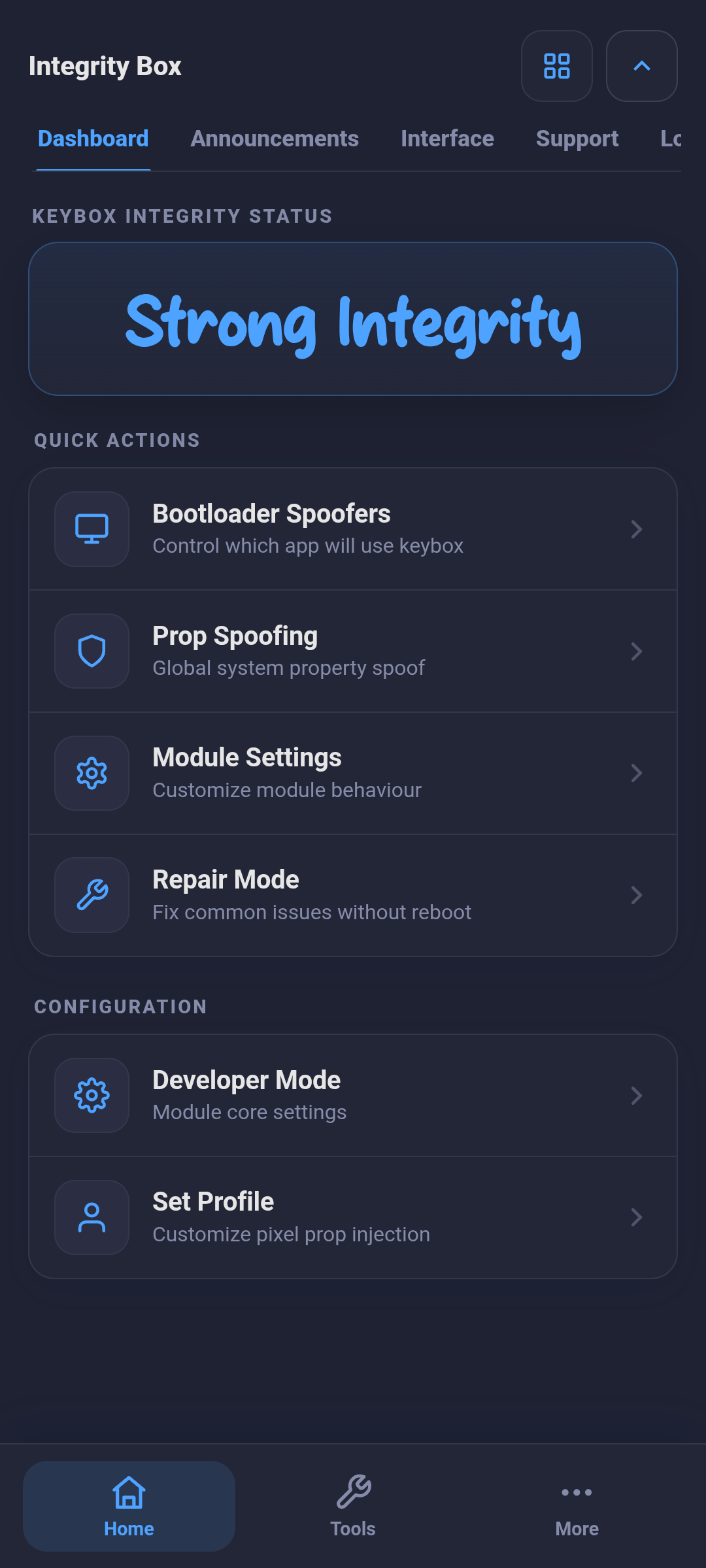
What to do: Check your keybox status using the Keybox Integrity Status UI.
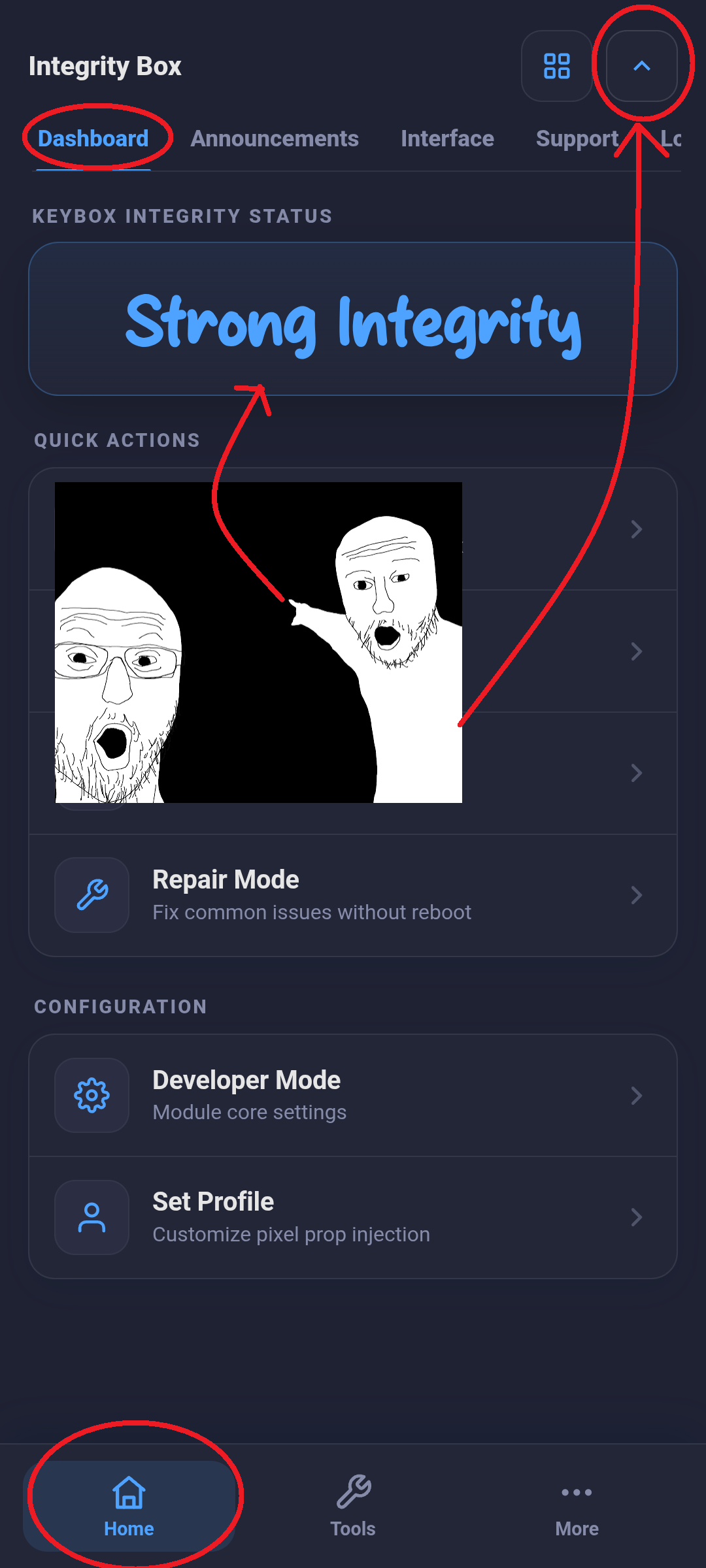
Note: A valid keybox does not guarantee that Play Integrity will pass. Play Protect now checks few more things, for more details, read the Device Certification section of this page.
If your keybox is valid but Play Integrity is still failing, try the built-in repair tool.
What to do: Open WebUI --> Repair Mode --> Repair.
Some custom ROMs include built-in spoofing for Google Play Services (GMS) and the Play Store. This can conflict with Integrity Box's own spoofing and cause Play Integrity to fail.
What to do:
- Open your ROM settings and look for Miscellaneous --> Spoofing / Play Integrity. The menu names may vary depending on your ROM.
- If available, disable the ROM's built-in spoofing.
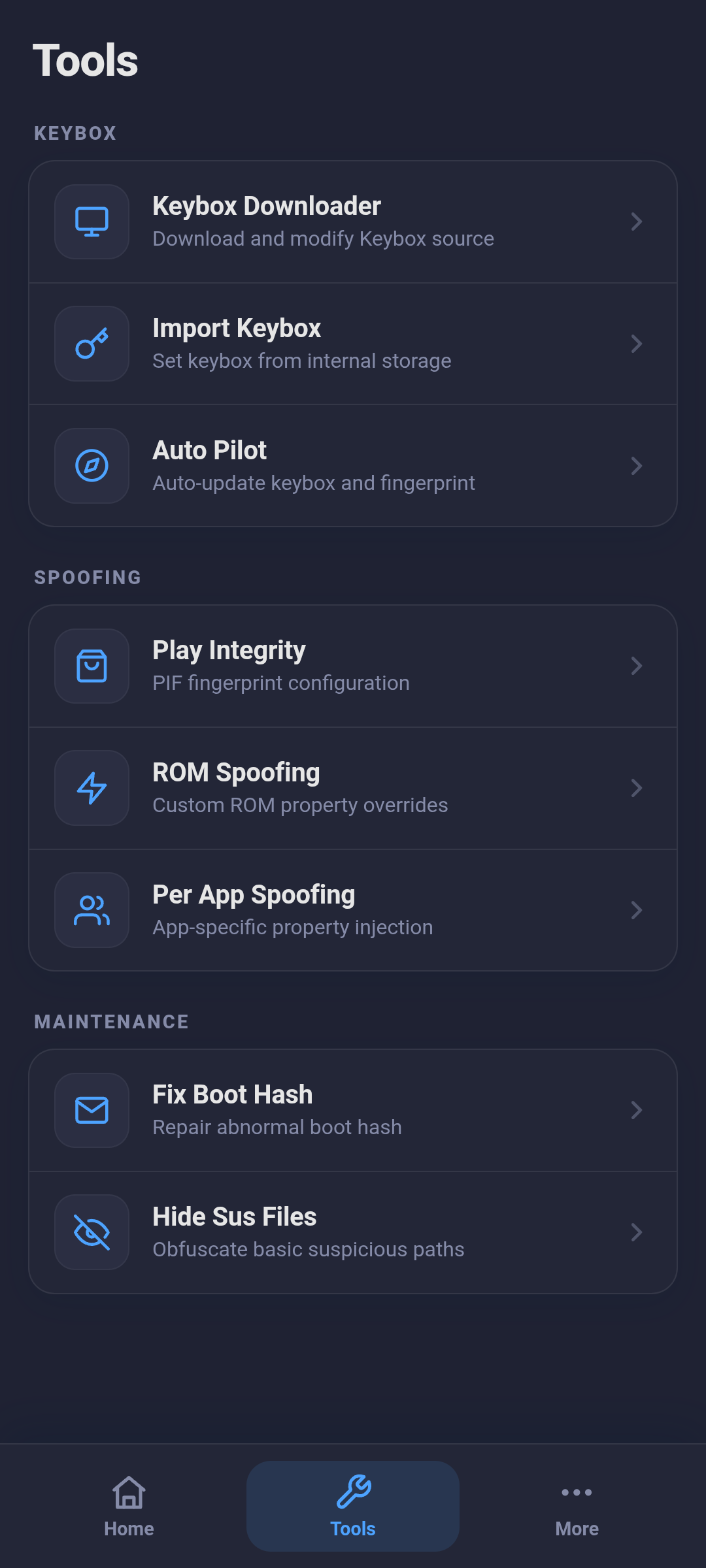
- If your ROM does not provide an option to disable it (for example, PixelOS), open Integrity Box WebUI --> ROM Spoofing.
- Click DISABLE DEVICE SPOOFING and DISABLE PLAYSTORE SPOOFING.
- Reboot your device and check Play Integrity again.
SELinux should ideally be in ENFORCING mode. If it shows PERMISSIVE, consider switching to a ROM that supports enforcing mode.
You can check your SELinux status in the Integrity Box WebUI using these screenshots:
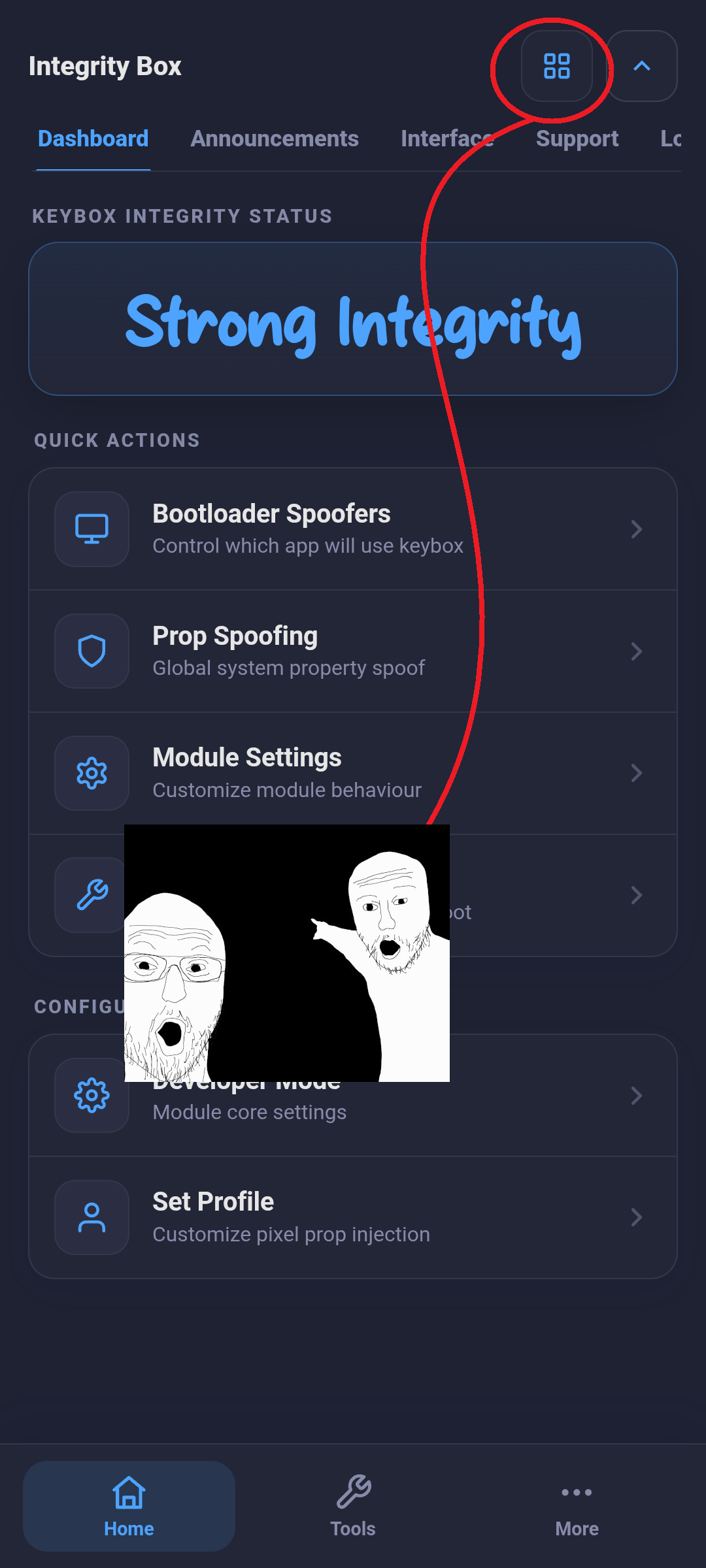
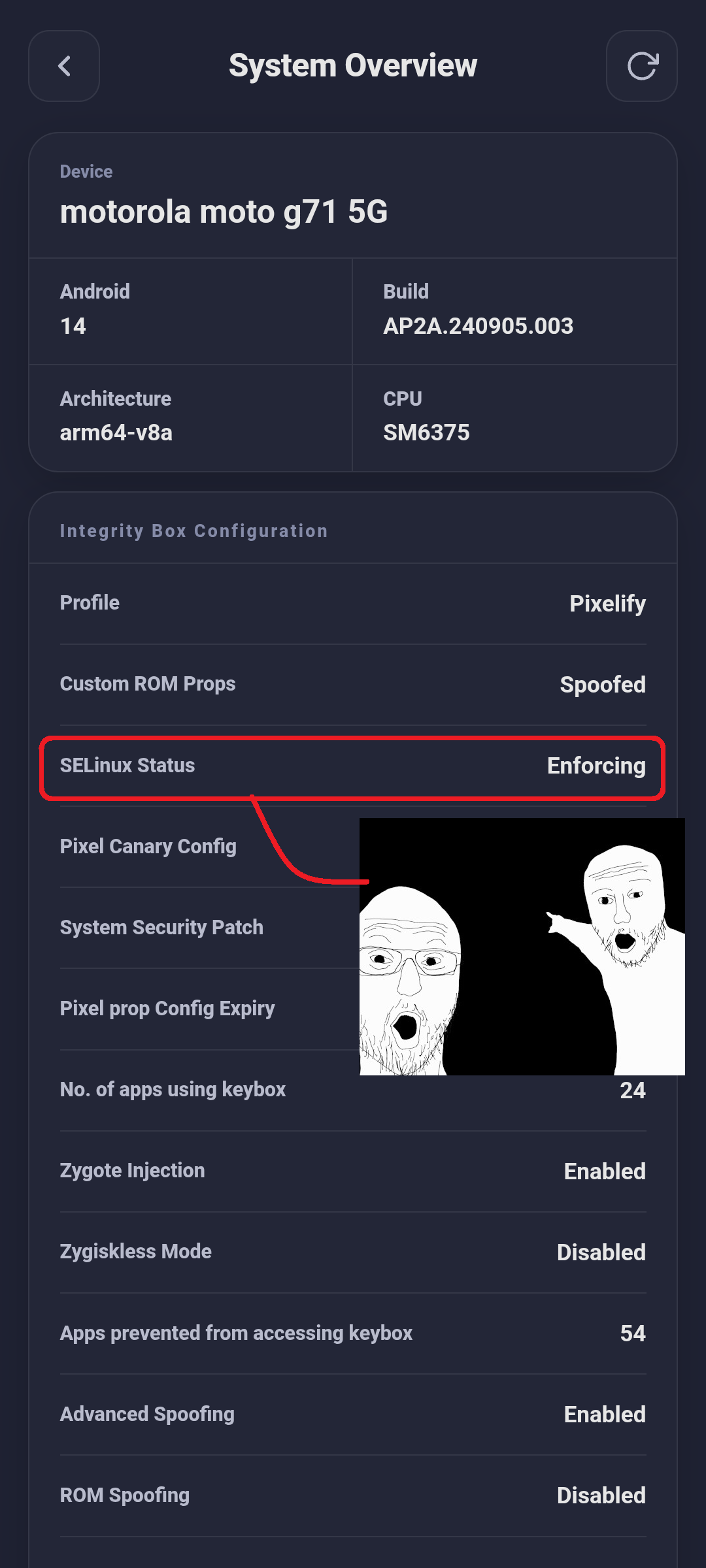
Alternative (not recommended): Open WebUI → Module Settings, enable Spoof SELinux, and reboot your device.
Warning: This option may cause boot issues. If your device fails to boot, remove
/data/adb/Box-Brain/spoof-selinux-bootfrom recovery. I’m giving you a sharp knife, use it carefully. If something goes wrong, let’s just call it a skill issue.
Other Magisk, KernelSU, or LSPosed modules may interfere with Integrity Box, especially those that modify GMS, Zygisk, Play Integrity, or device properties.
What to do: Temporarily disable other related modules, reboot, and test again.
For a basic setup, you only need Zygisk, Integrity Box, and Tricky Store. Additional modules may cause conflicts.
A recent Google Play Services update may be related to Play Integrity failures.
What to do: If the problem started after an update, try uninstalling Google Play Services updates from Android Settings, if available, and test again.
An invalid or banned device fingerprint can cause Play Integrity to fail.
What to do: WebUI --> Set Profile --> choose PIXELIFY or SUPREME profile
Device Certification
Note: Your device must pass at least
DEVICE INTEGRITYto meet the required certification checks.
Google detects your unlocked bootloader.
You can try using Tricky Store OOS with a valid keybox to address this without locking your bootloader.
Play Protect is detecting root on your device.
Make sure root is properly hidden to resolve this issue.
Your device's security patch is outdated.
You can spoof the android system security patch using Integrity Box. However, this may cause issues on some stock ROMs.
How to enable patch spoofing: Open WebUI --> Module Settings, disable the Skip Patch Spoofing toggle, and reboot your device.
Your device failed Play Protect certification checks.
This happens when one or more of the following are detected:
- Unlocked bootloader
- Custom ROM
- Root
Address the cause to resolve the certification issue.
Google Play Services is updating in the background.
Wait for the update to finish, then try again.
Report a Problem
WebUI>>Report a Problem>>Export Report- An archive (.tar.gz) file will be generated inside
/sdcard/MeowLogfolder - Share that file to 𝗠𝗘𝗢𝗪𝗻𝗮 💅 and explain your problem in detail.
Acknowledgement



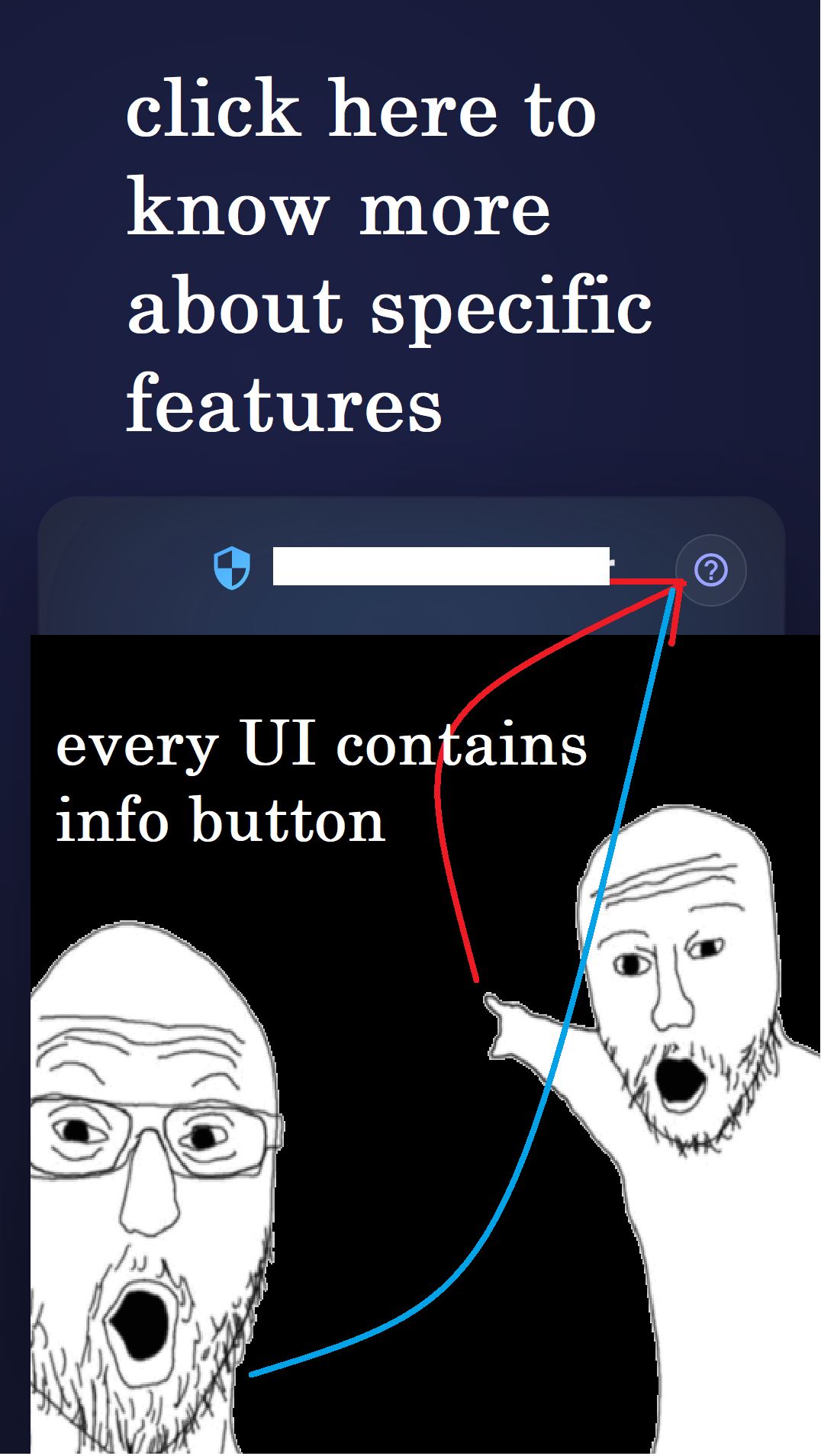
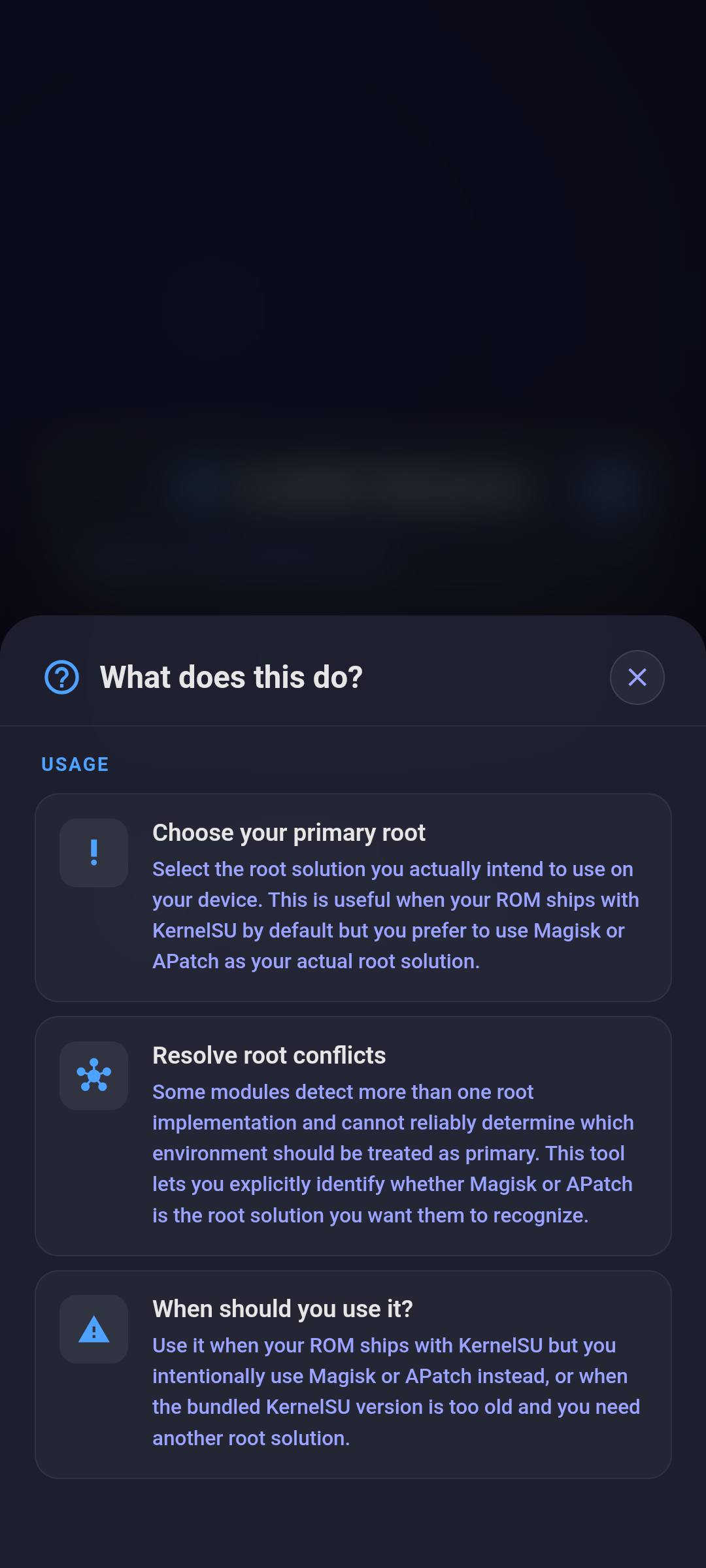
Every UI includes an info button that explains the available options and how they work. Just click on the info button to learn more. Click here to see an example.
 Home |
 Home |
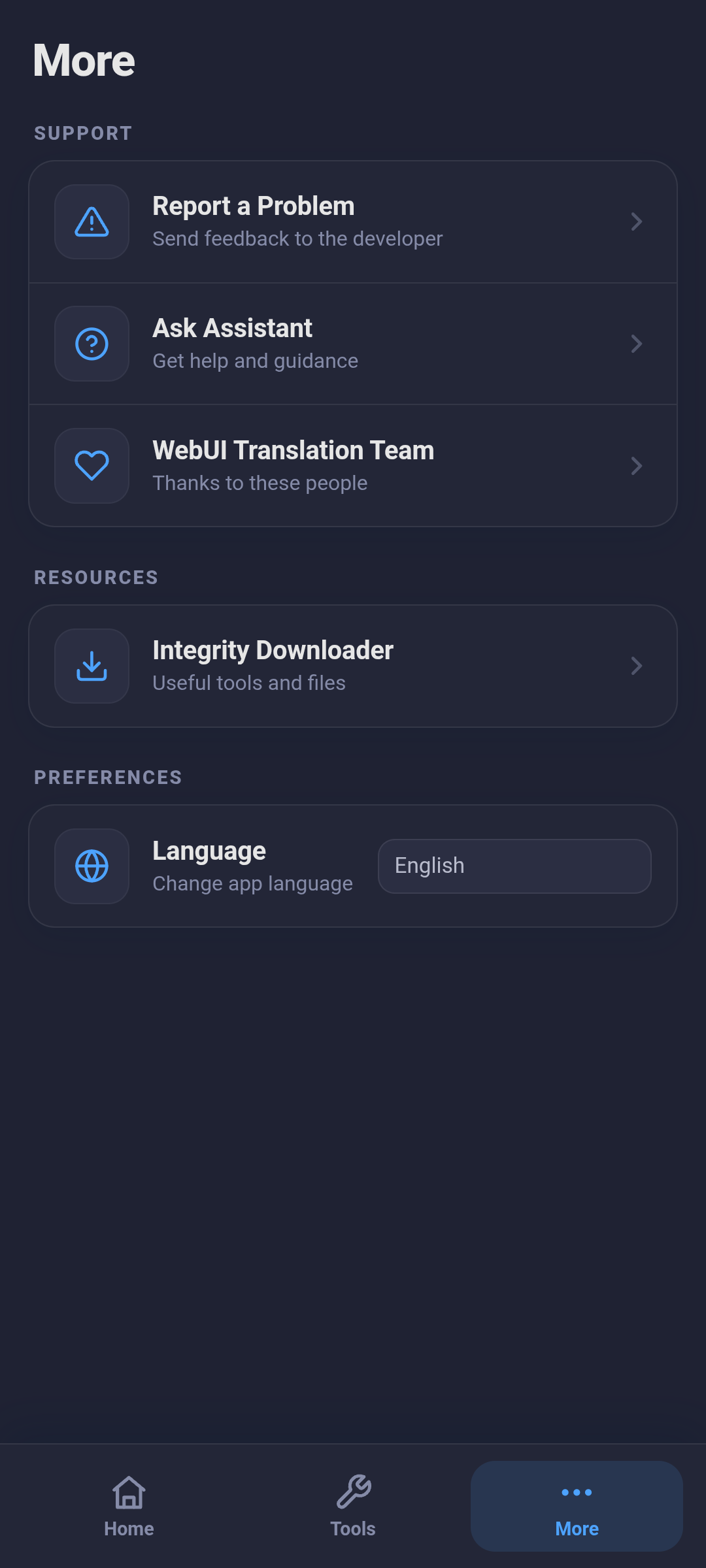 Home |
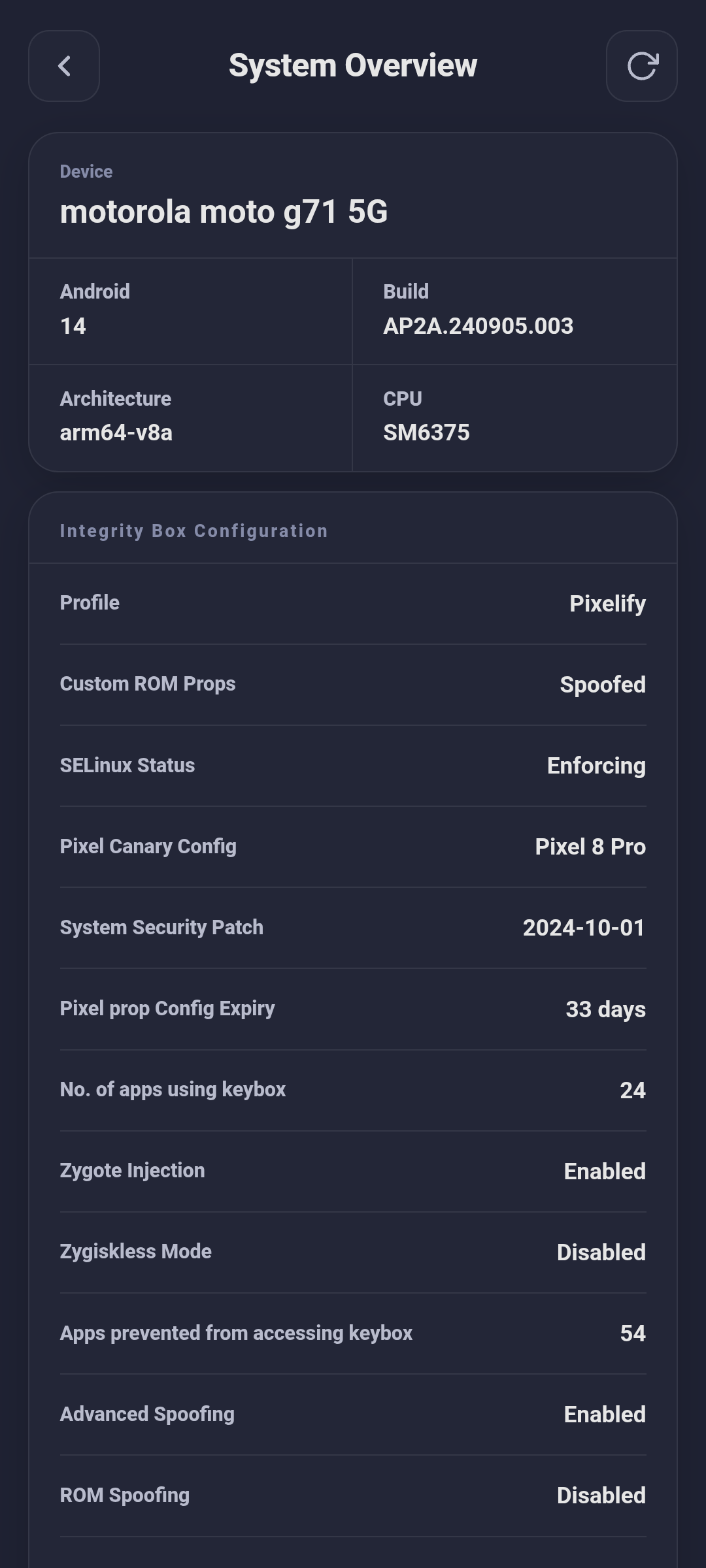 Dashboard |
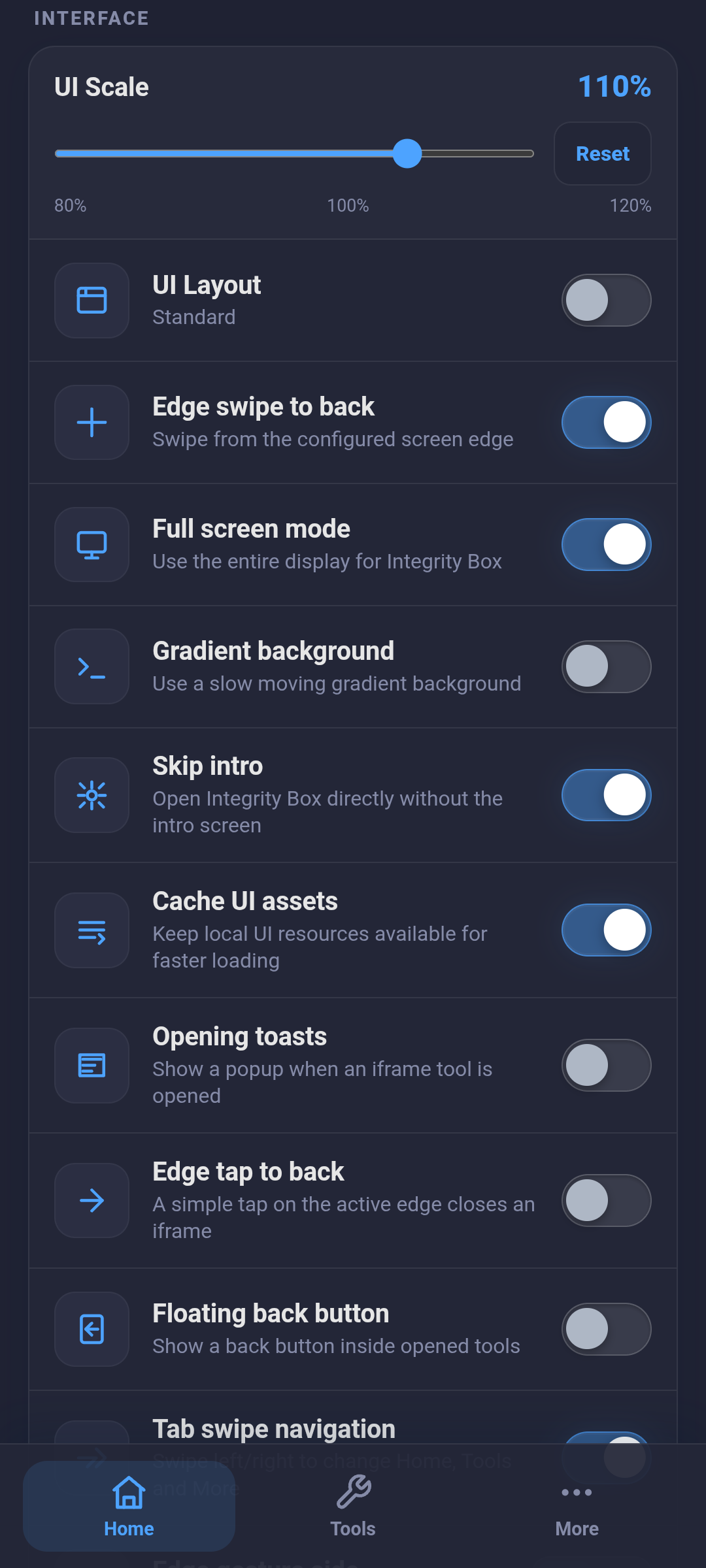 Interface |
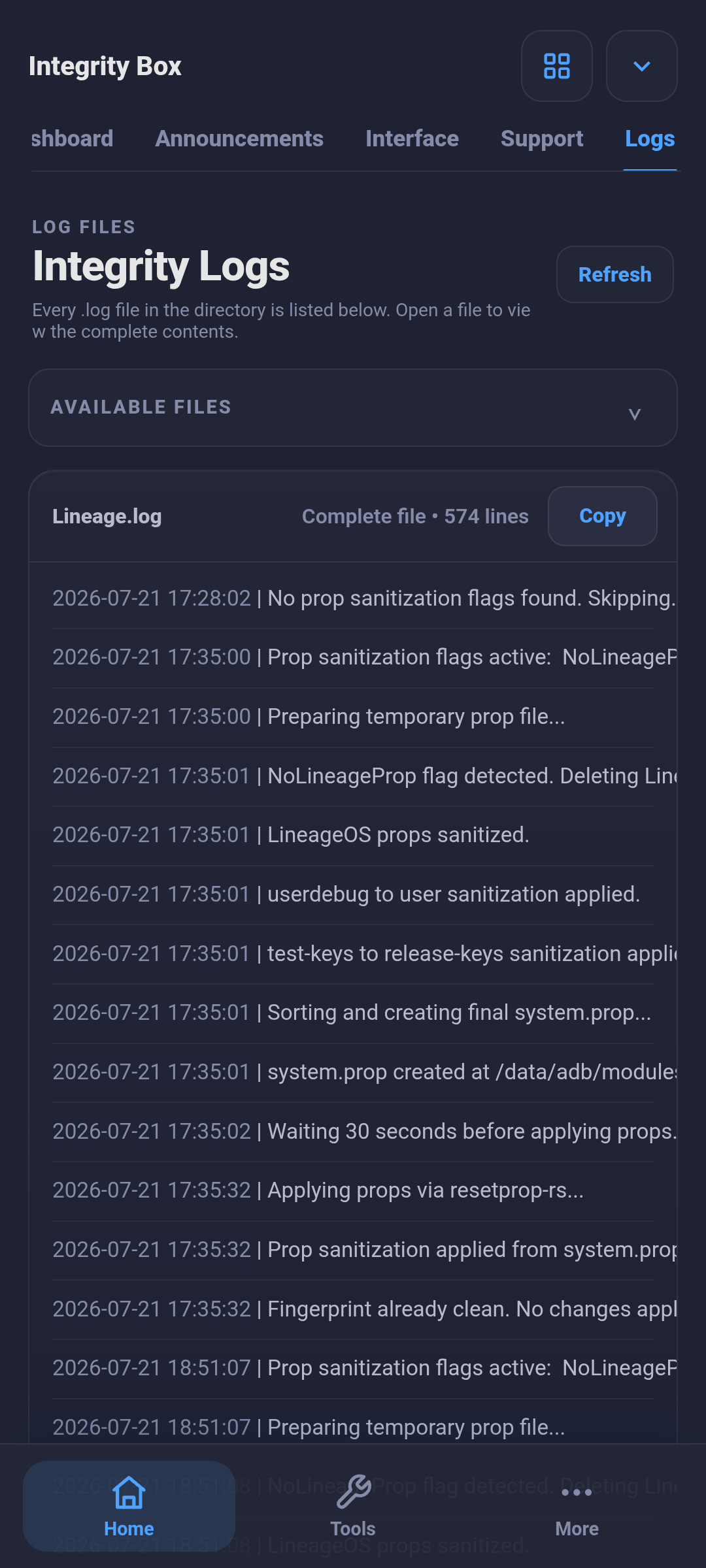 Logs |
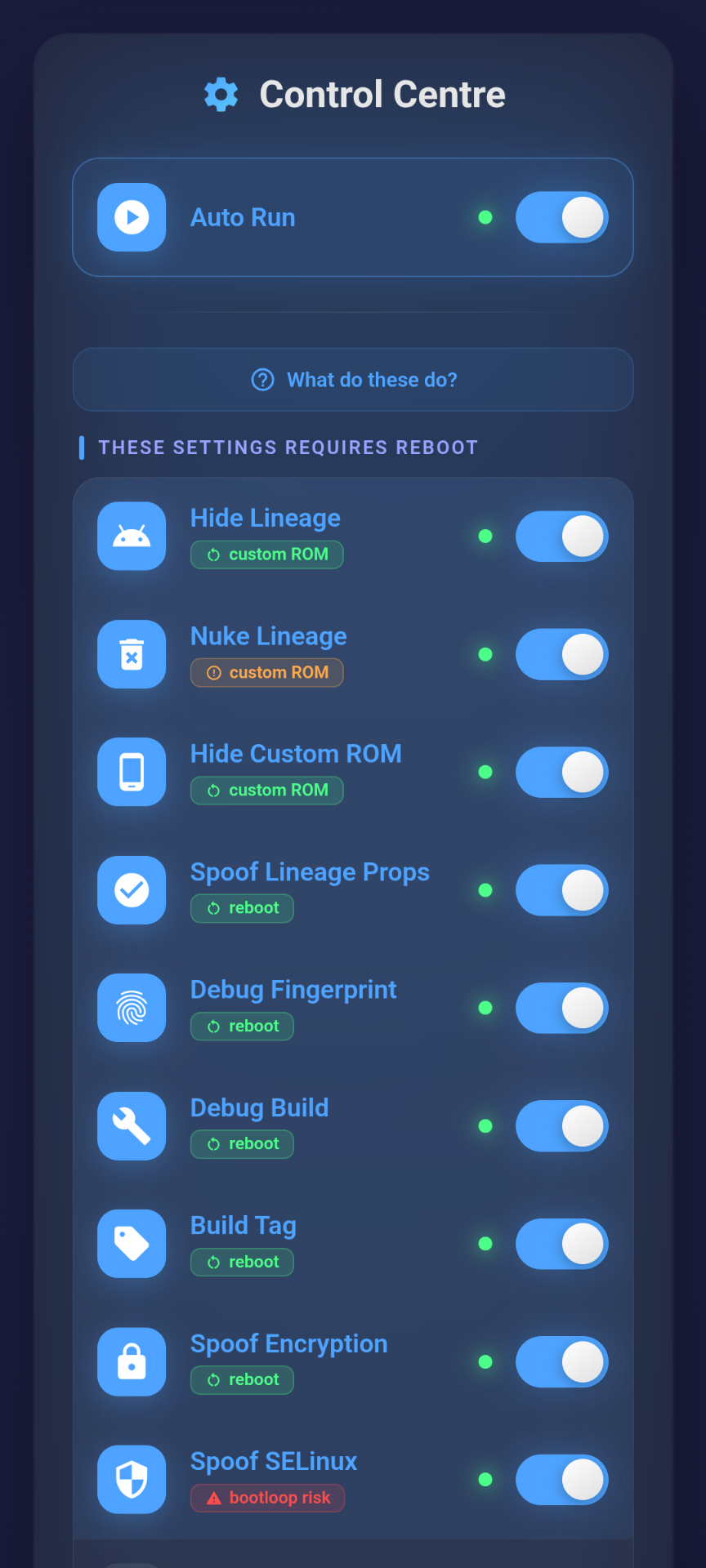 Module Settings |
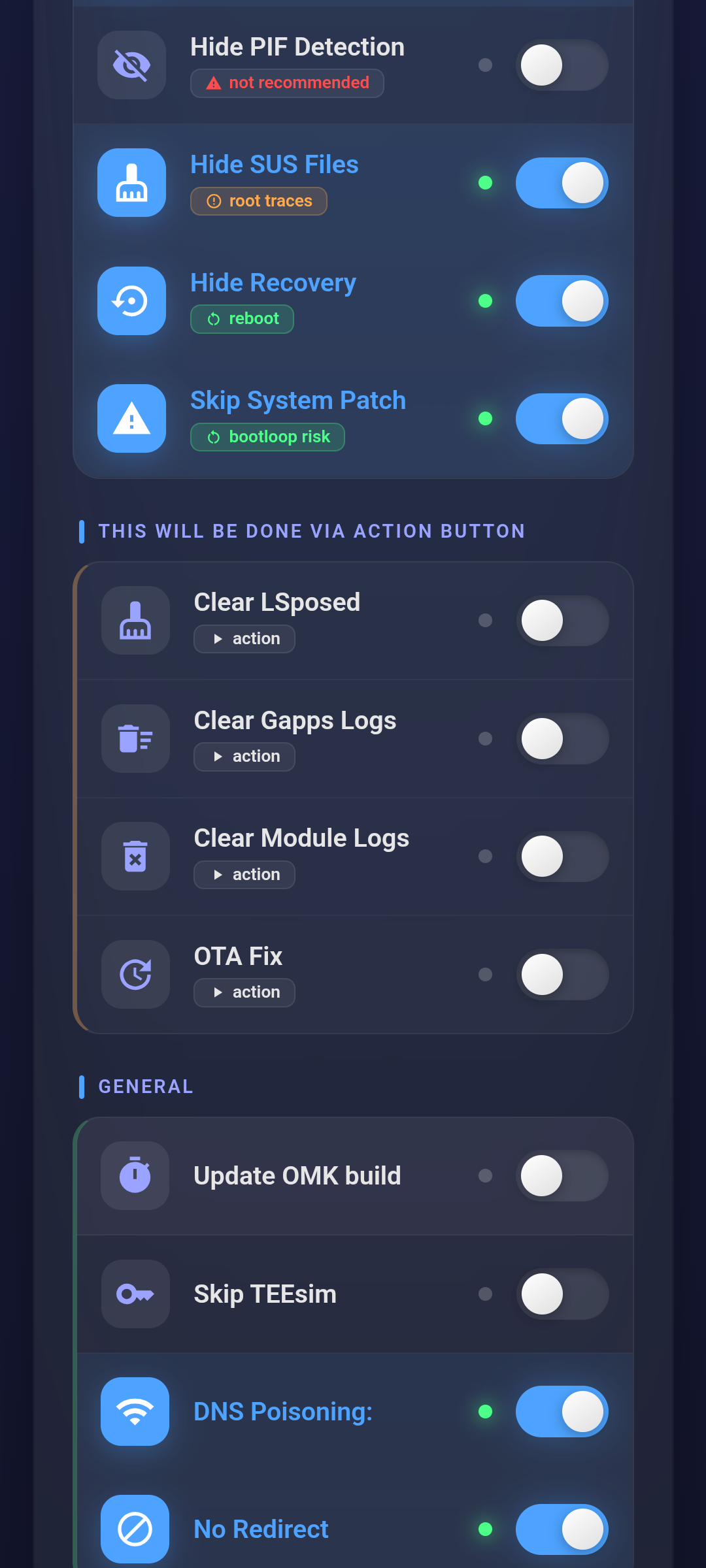 Module Settings |
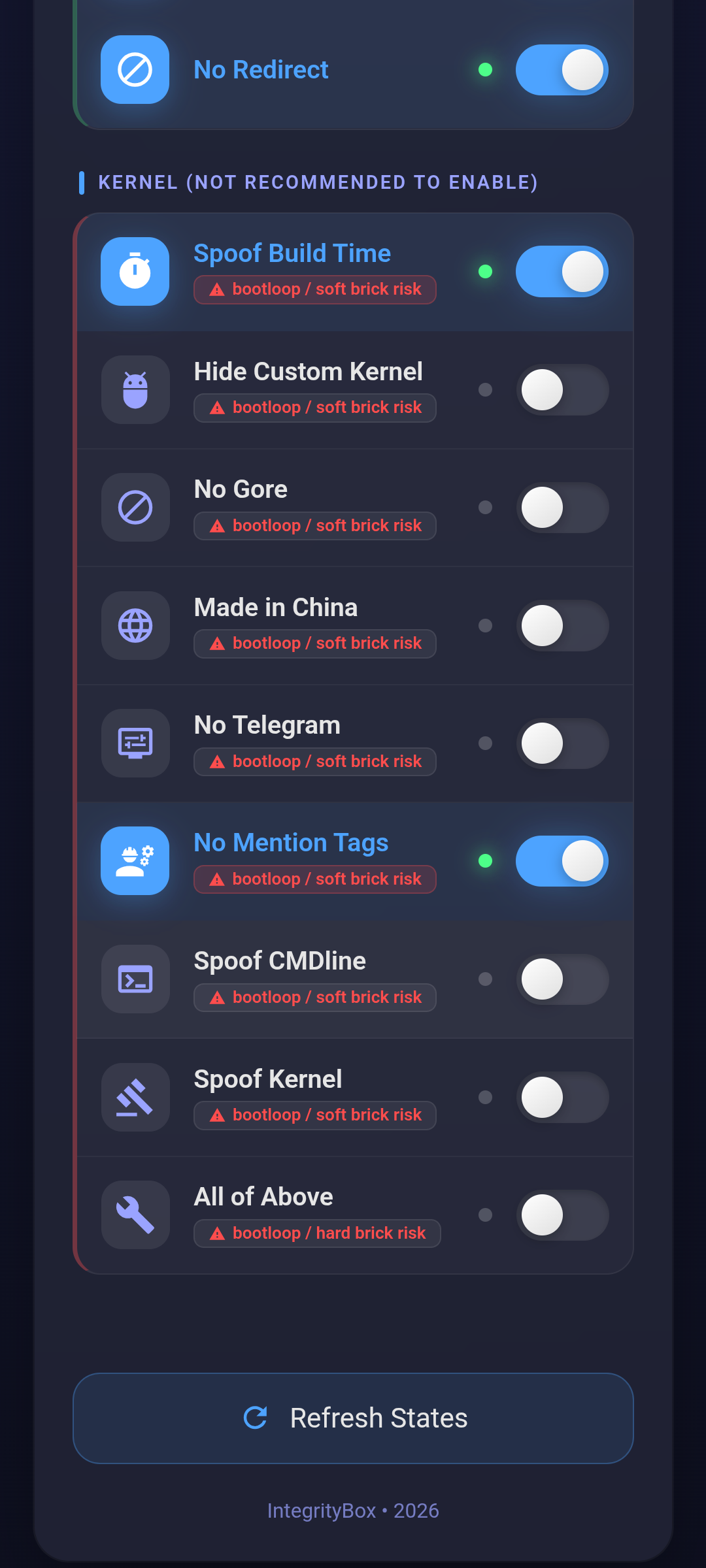 Module Settings |
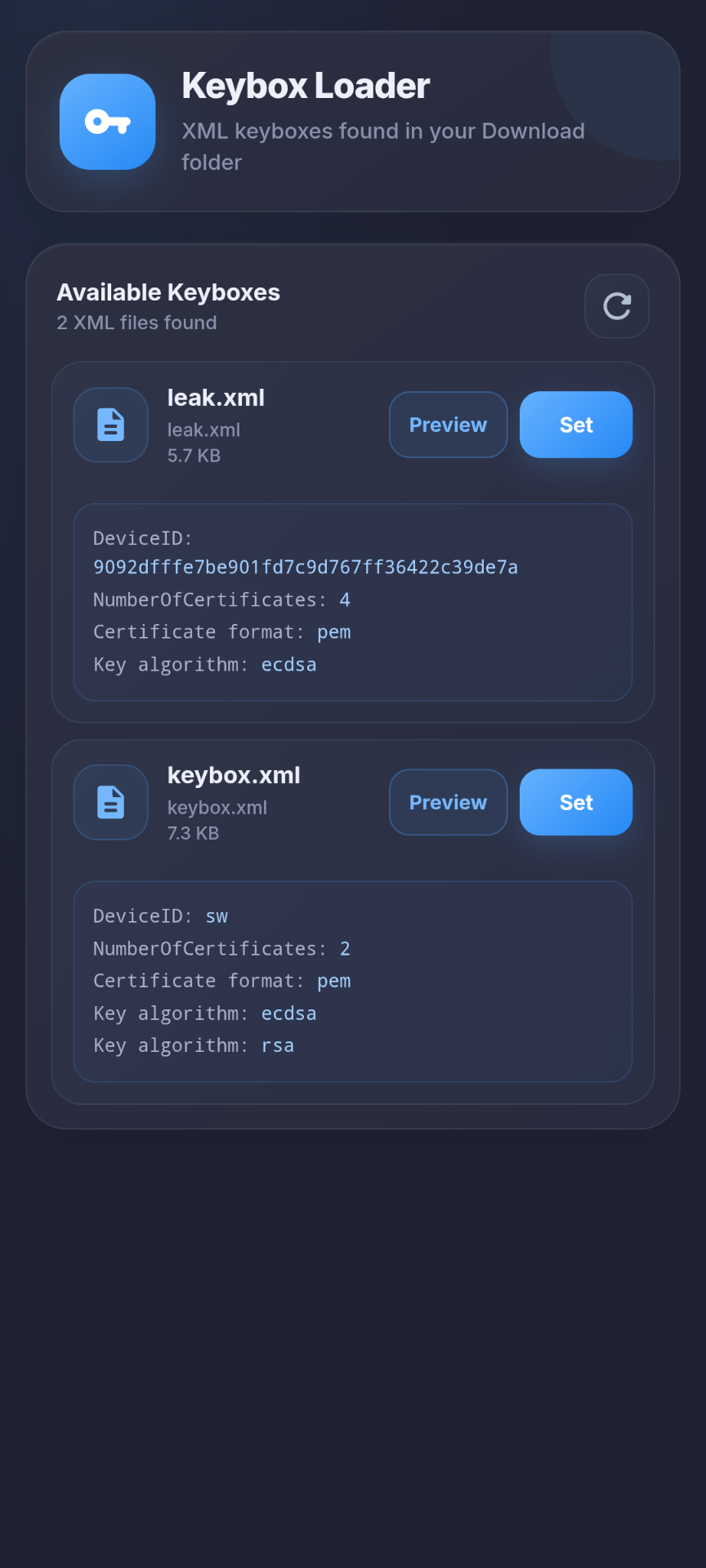 Keybox Loader |
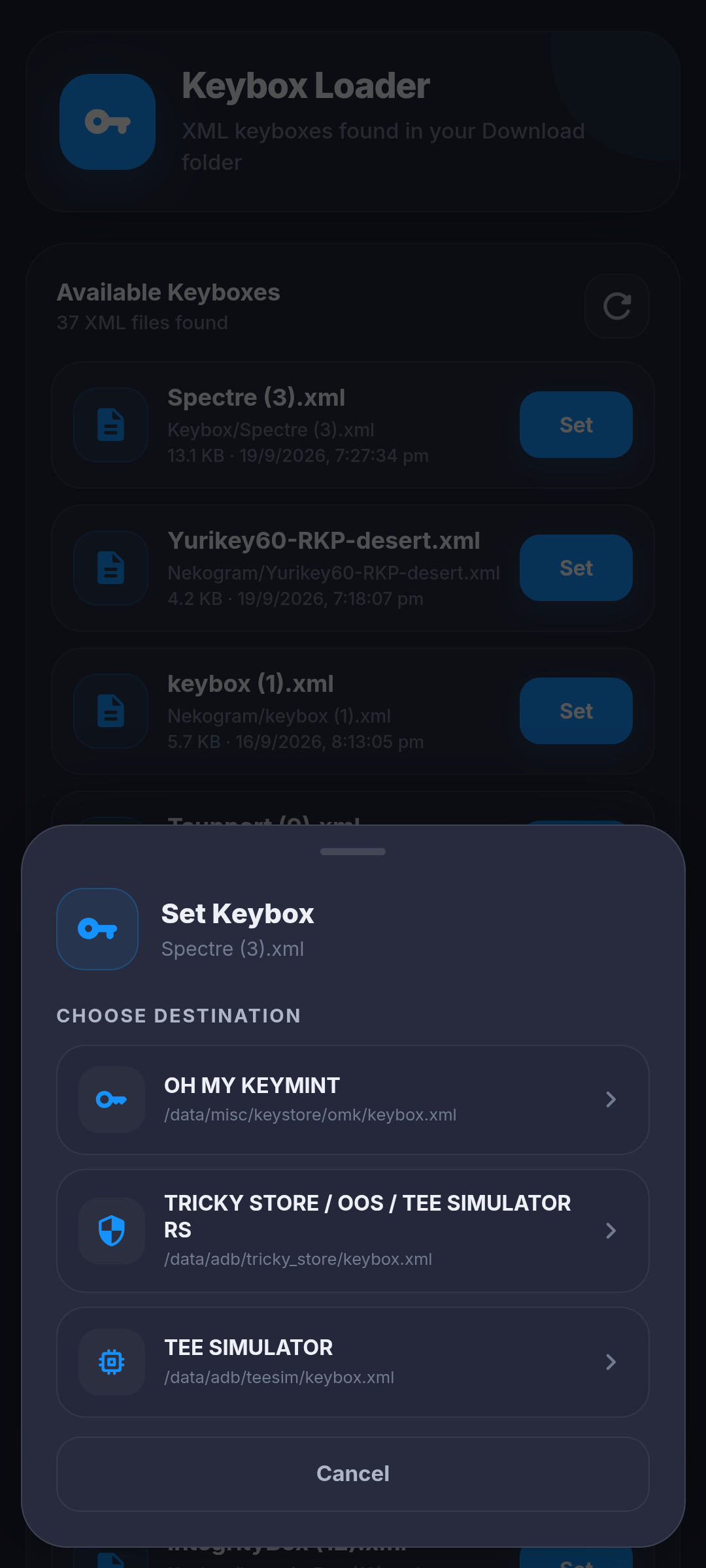 Keybox Loader |
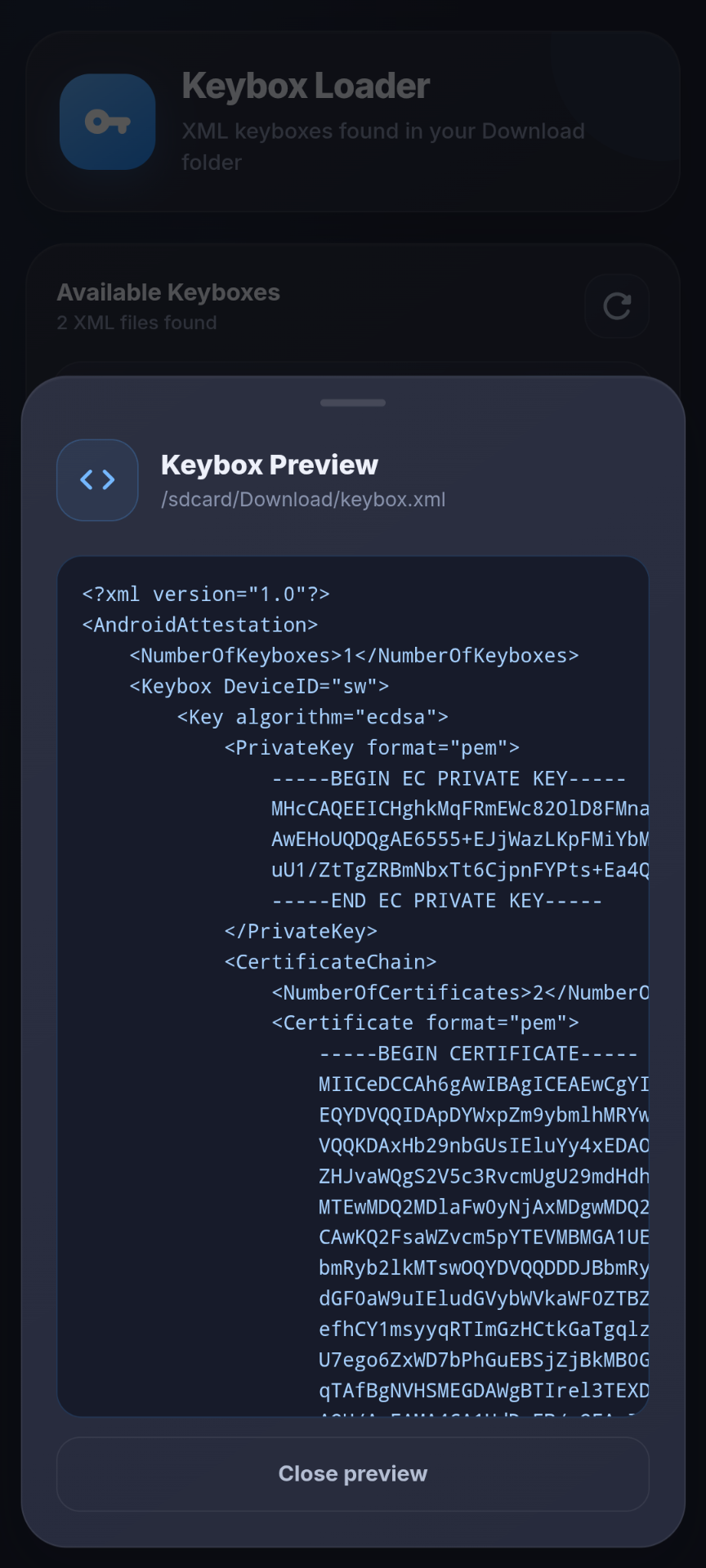 Keybox Loader |
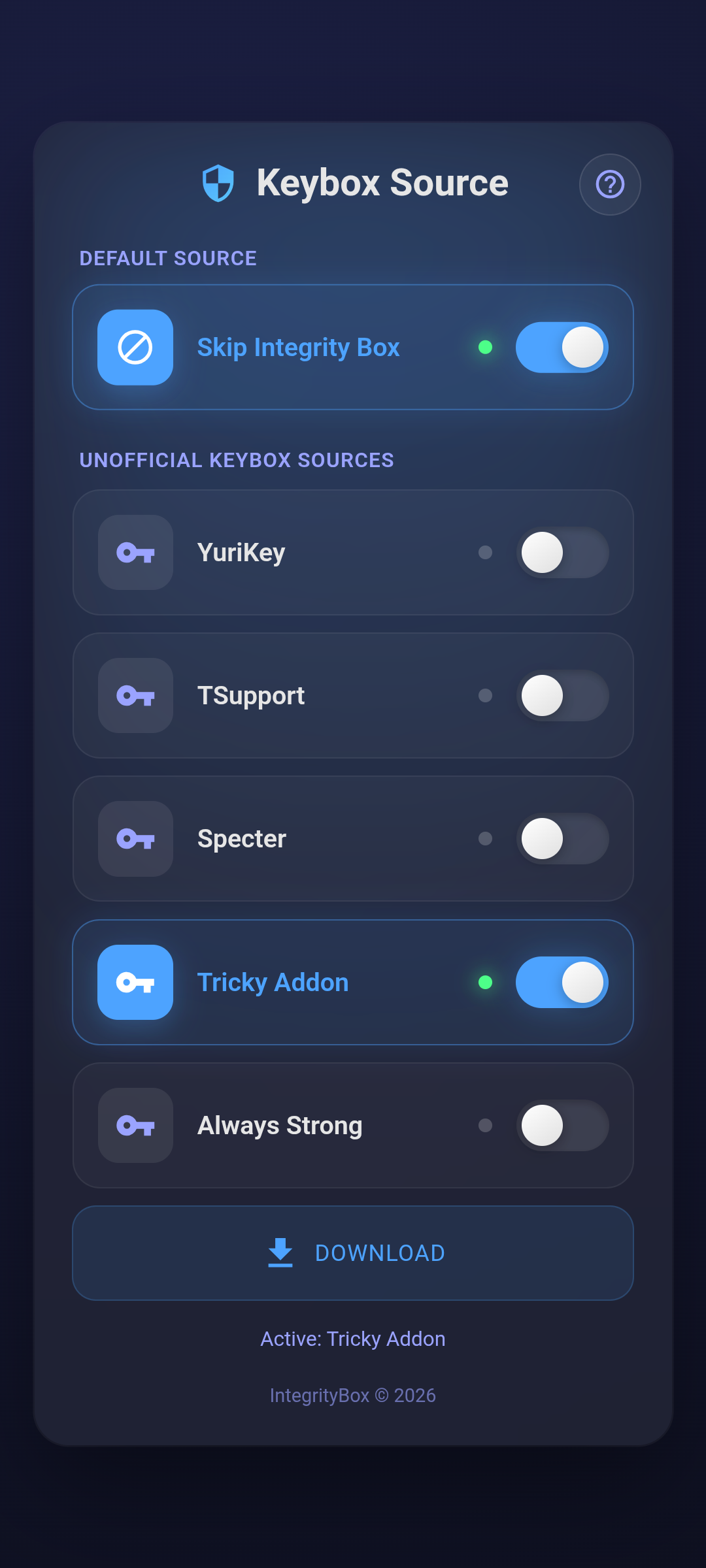 Multiple Keybox Source |
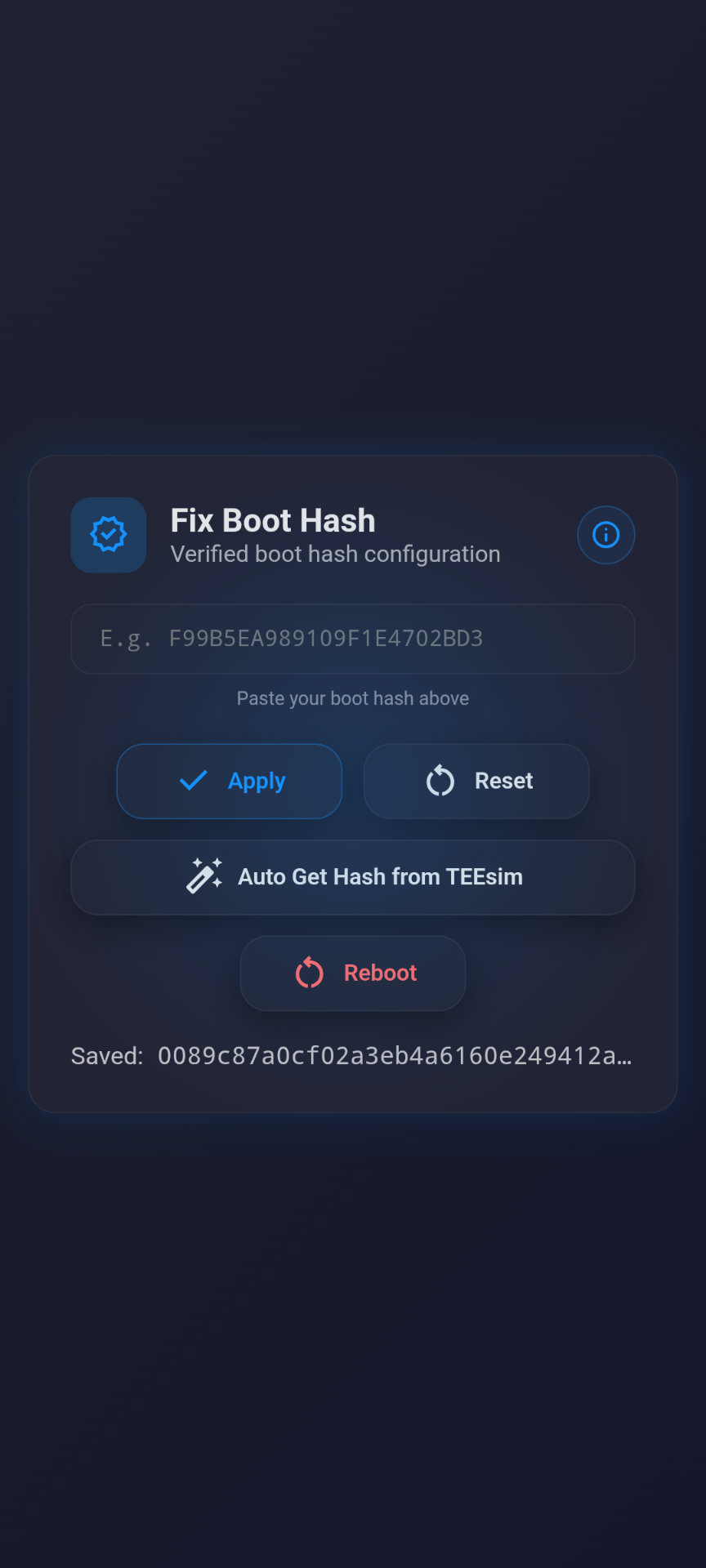 Fix Boot Hash |
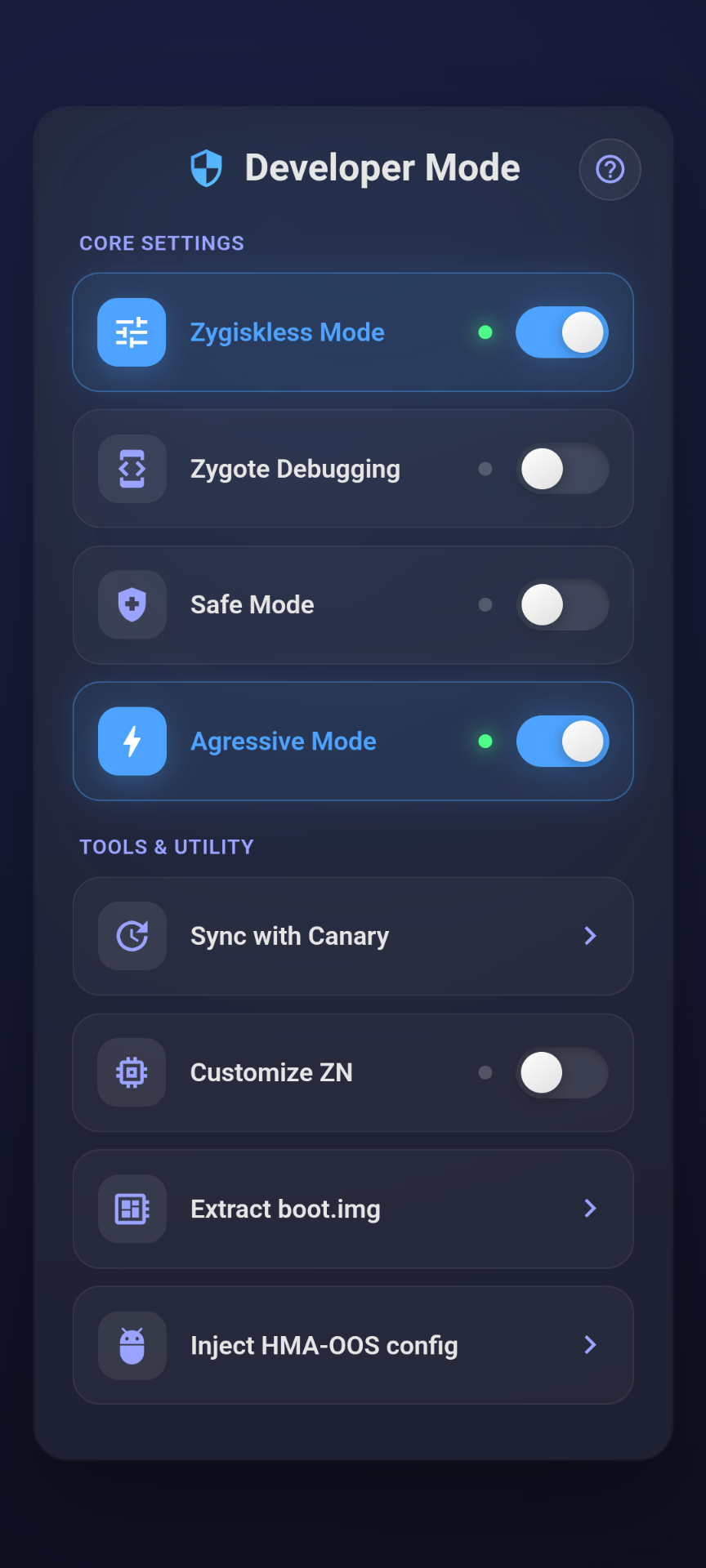 Developer Mode |
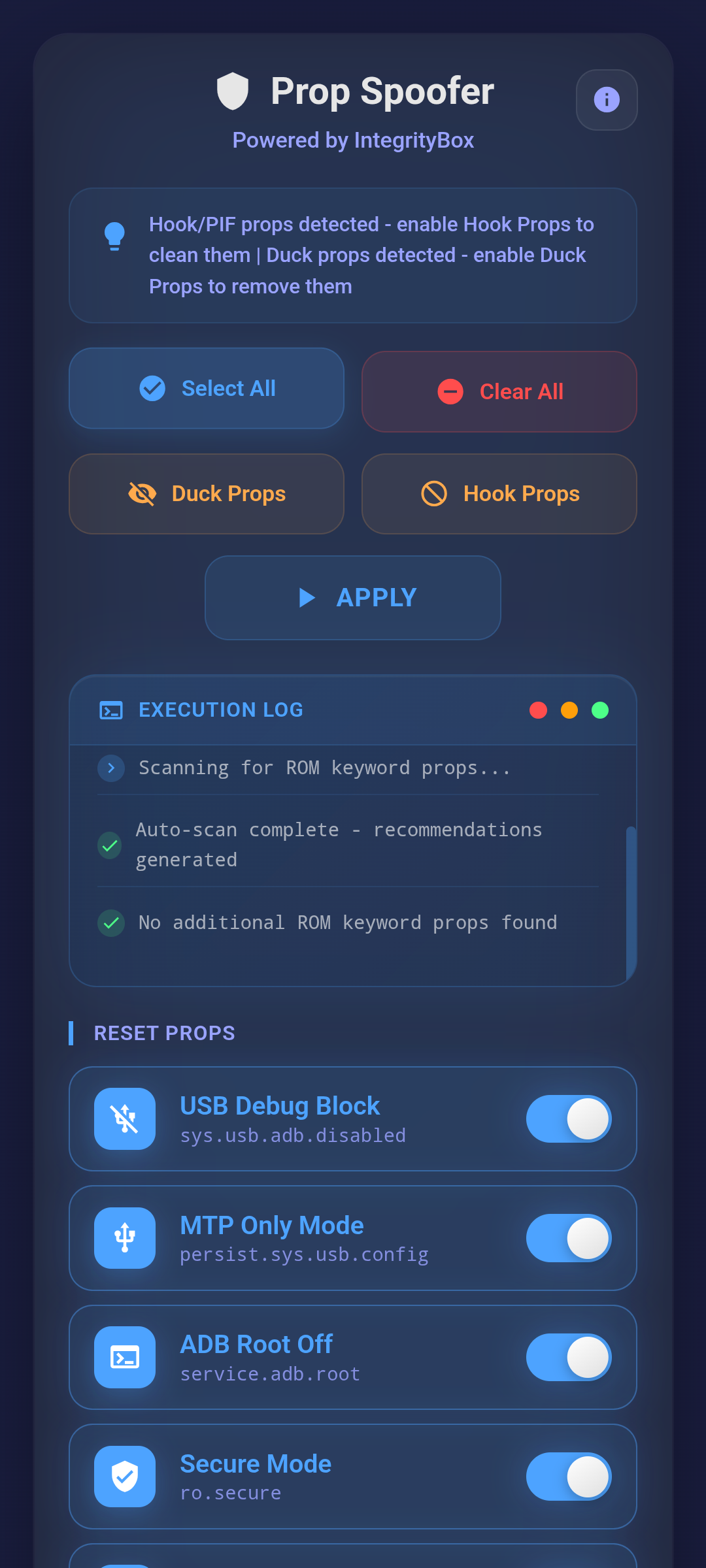 Prop Spoofer |
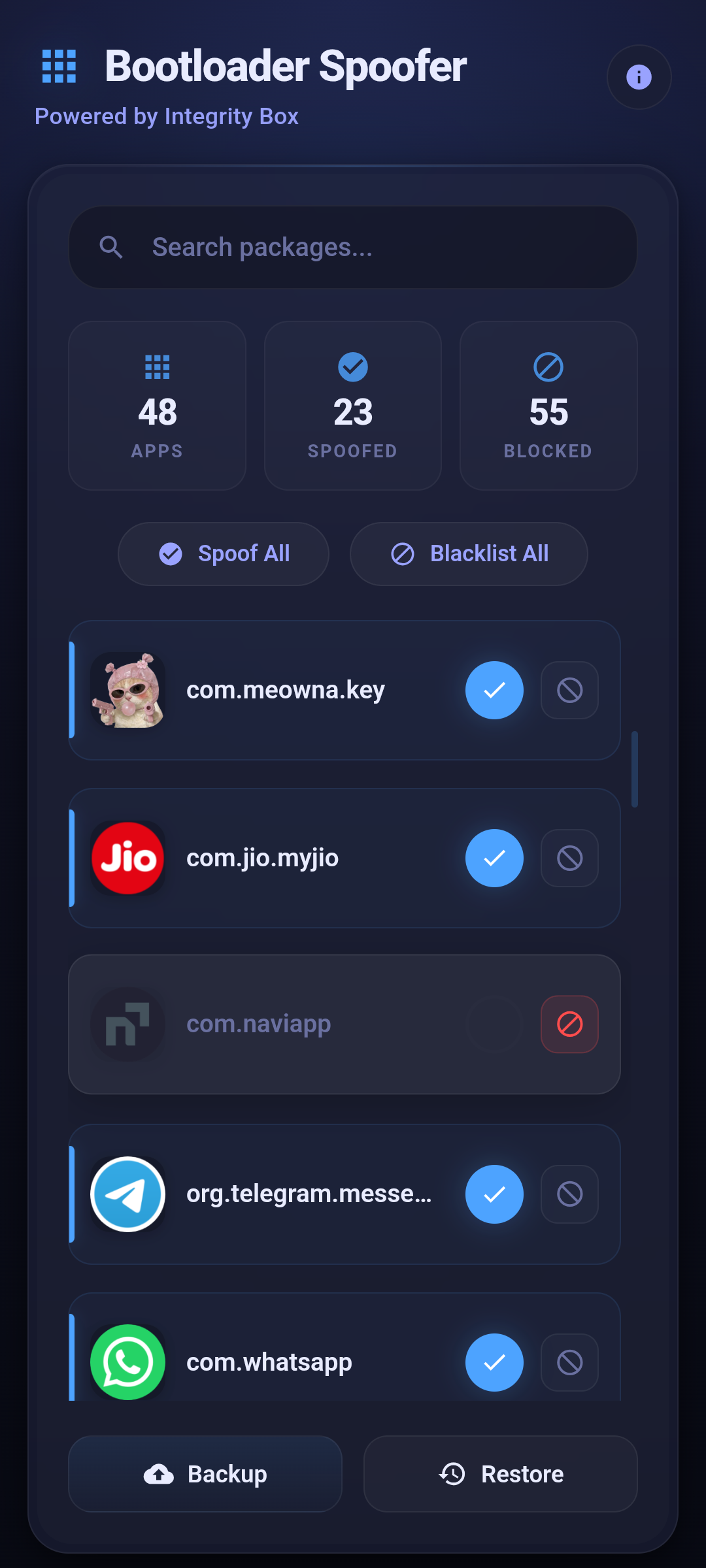 Bootloader Spoofer |
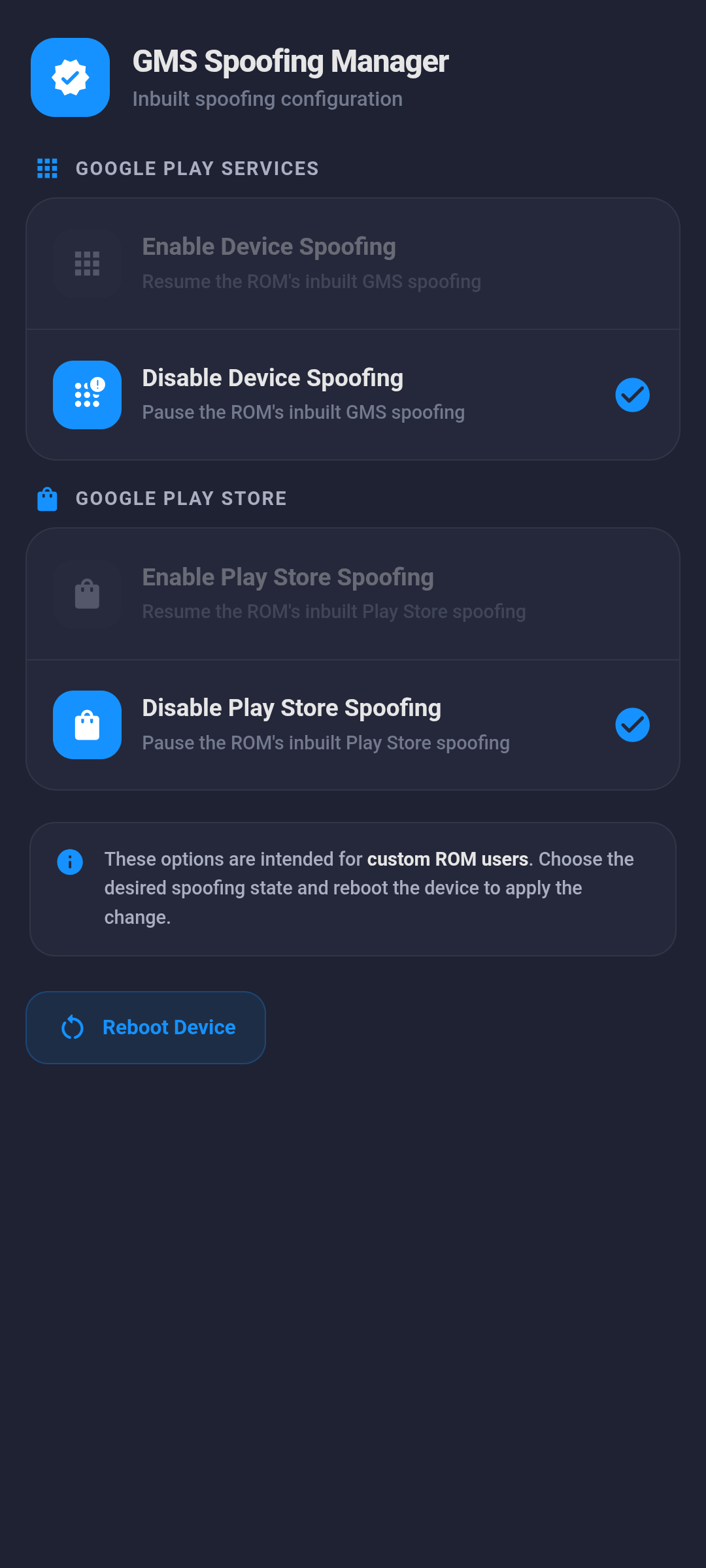 Disable ROM Spoofing |
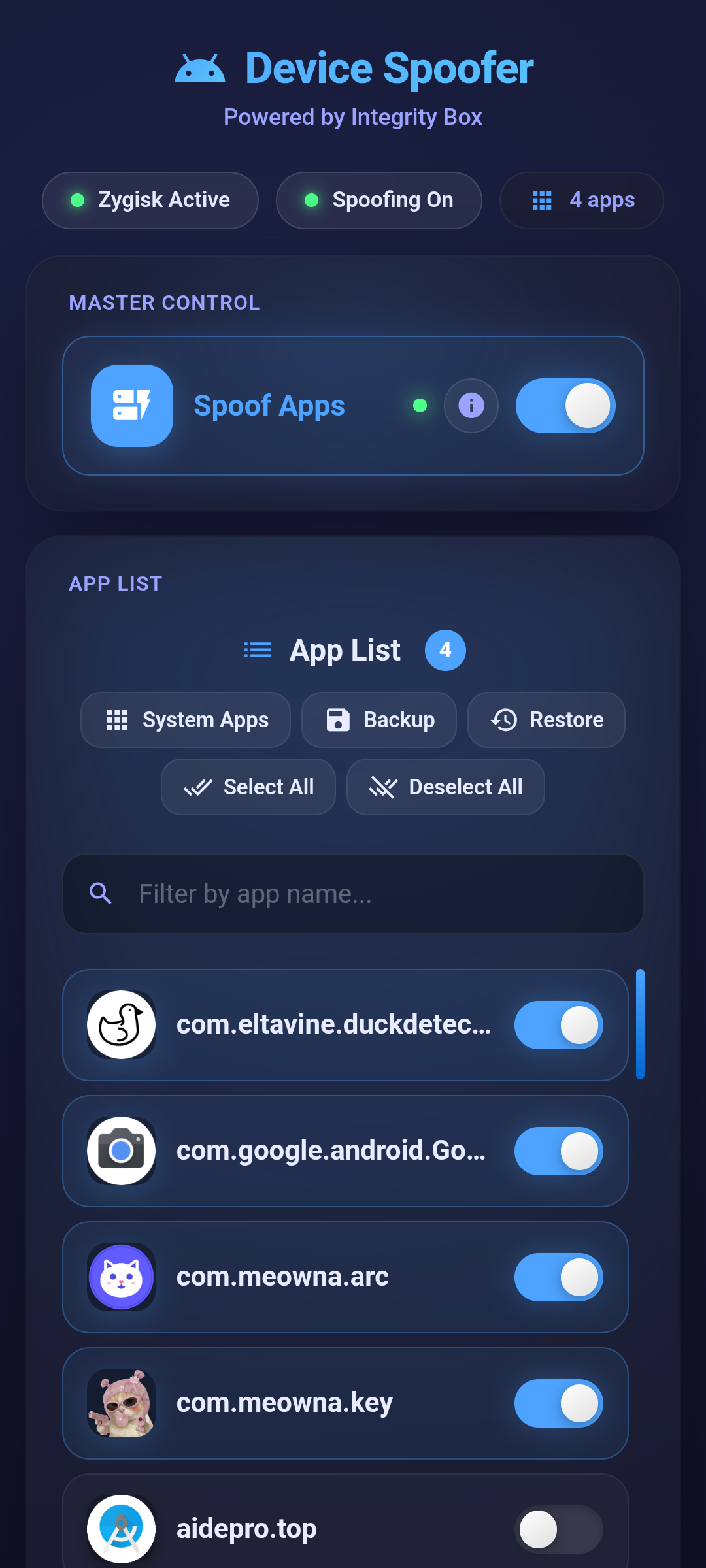 Per-App Spoofing |
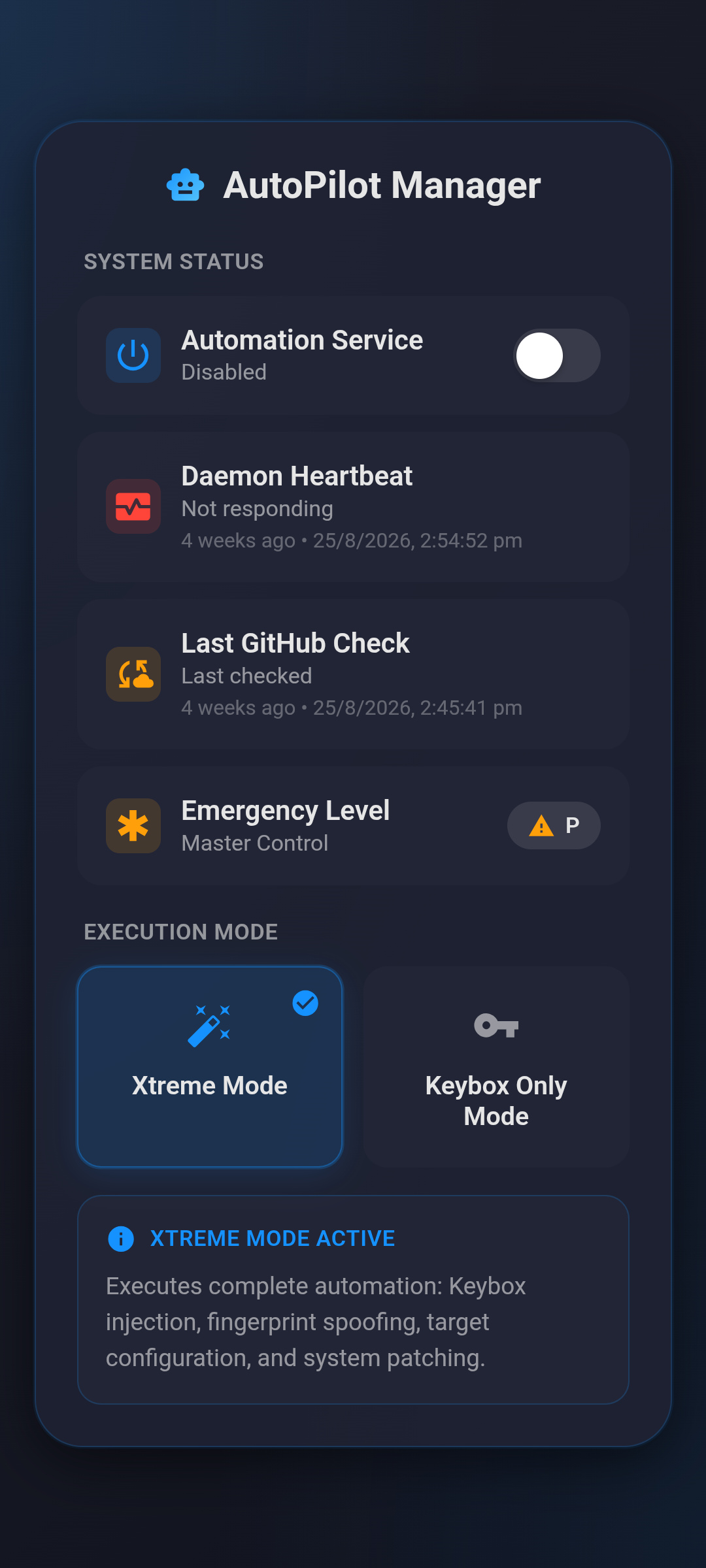 Auto Update Keybox |
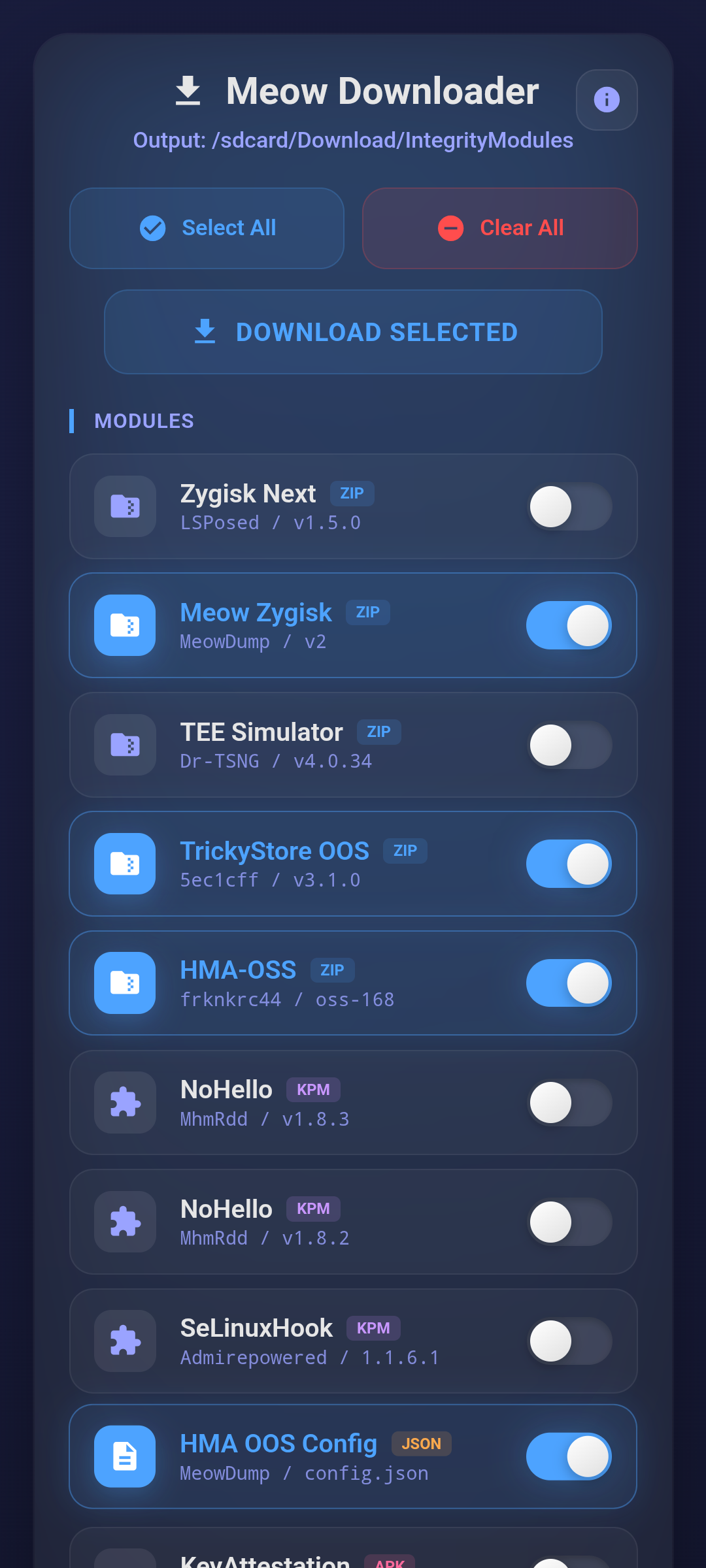 Built-in Downloader |
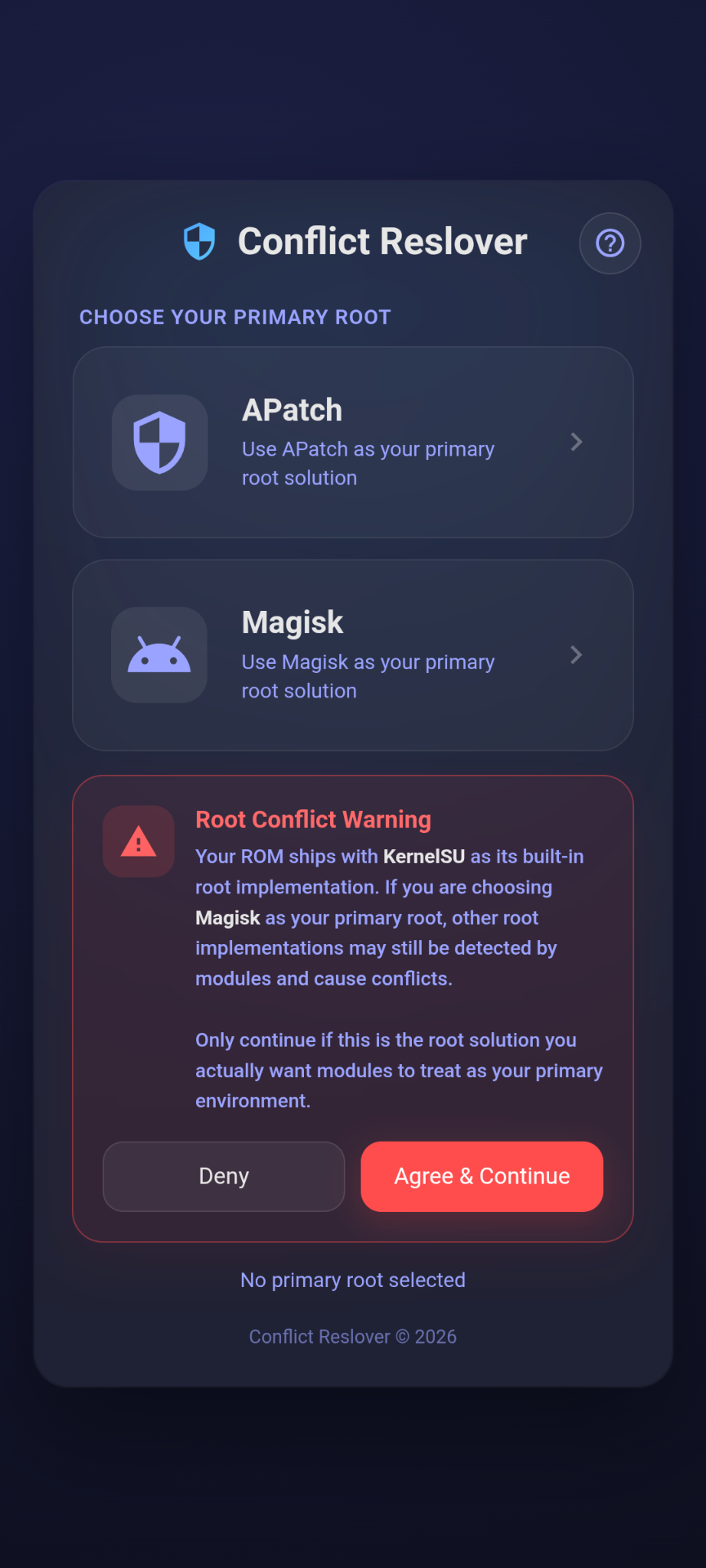 Conflict Resolver |
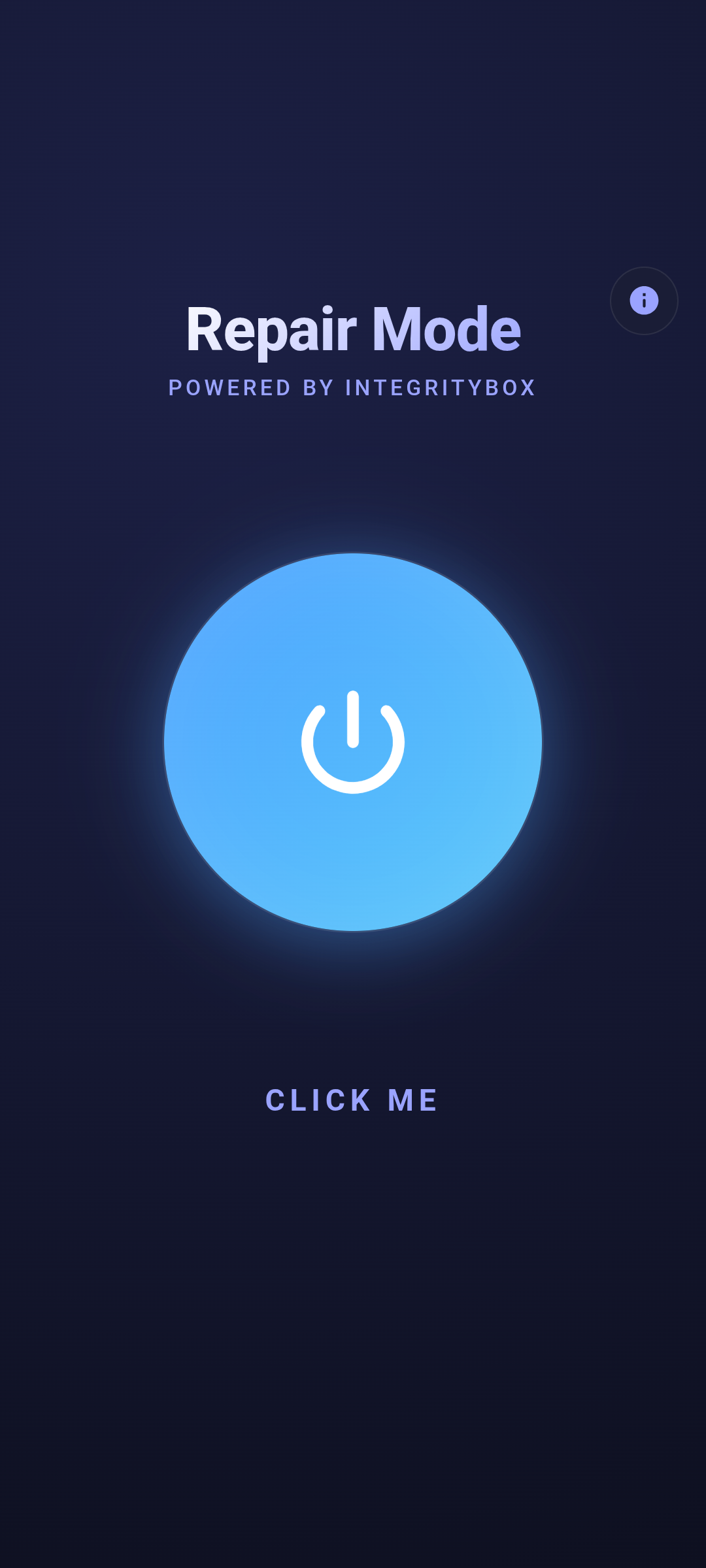 Integrity Repair Mode |
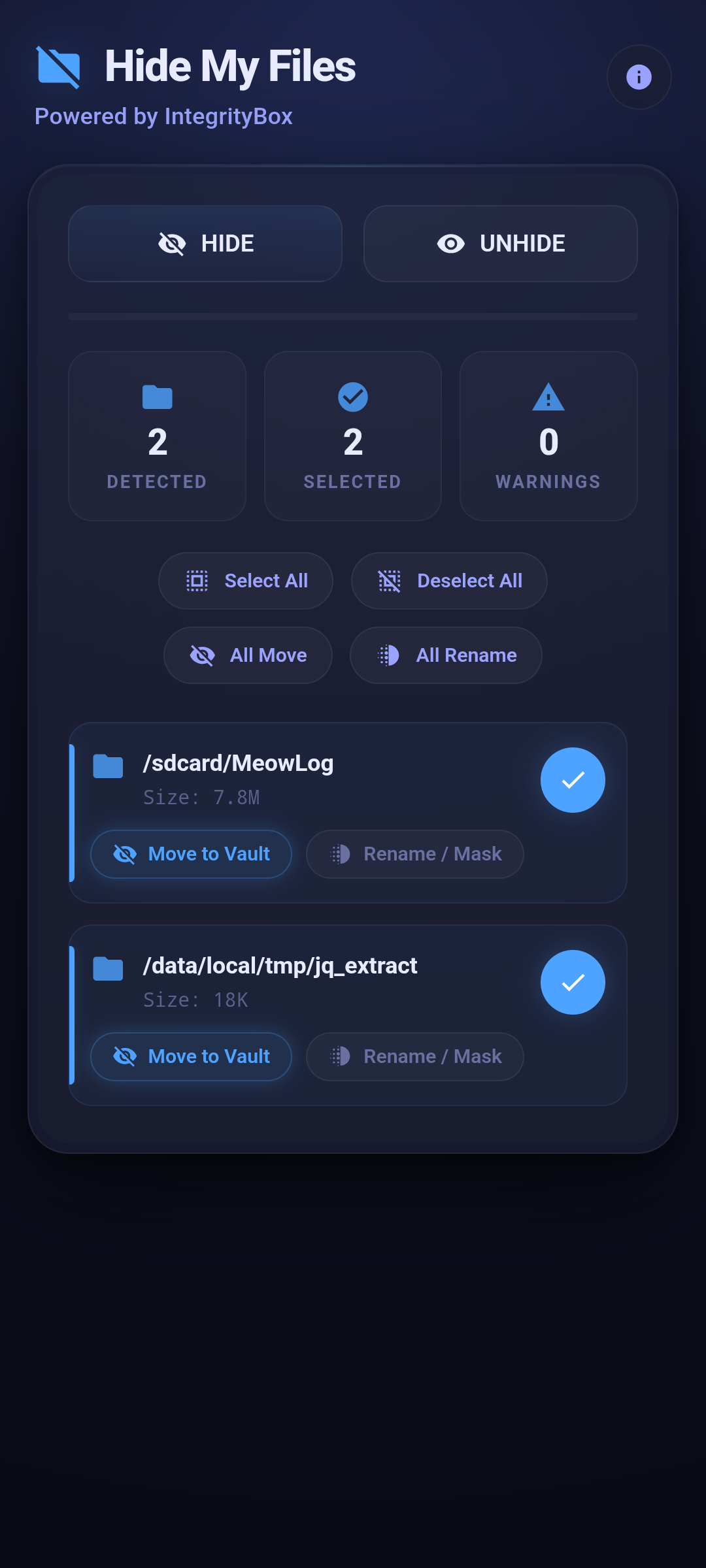 Hide SUS |
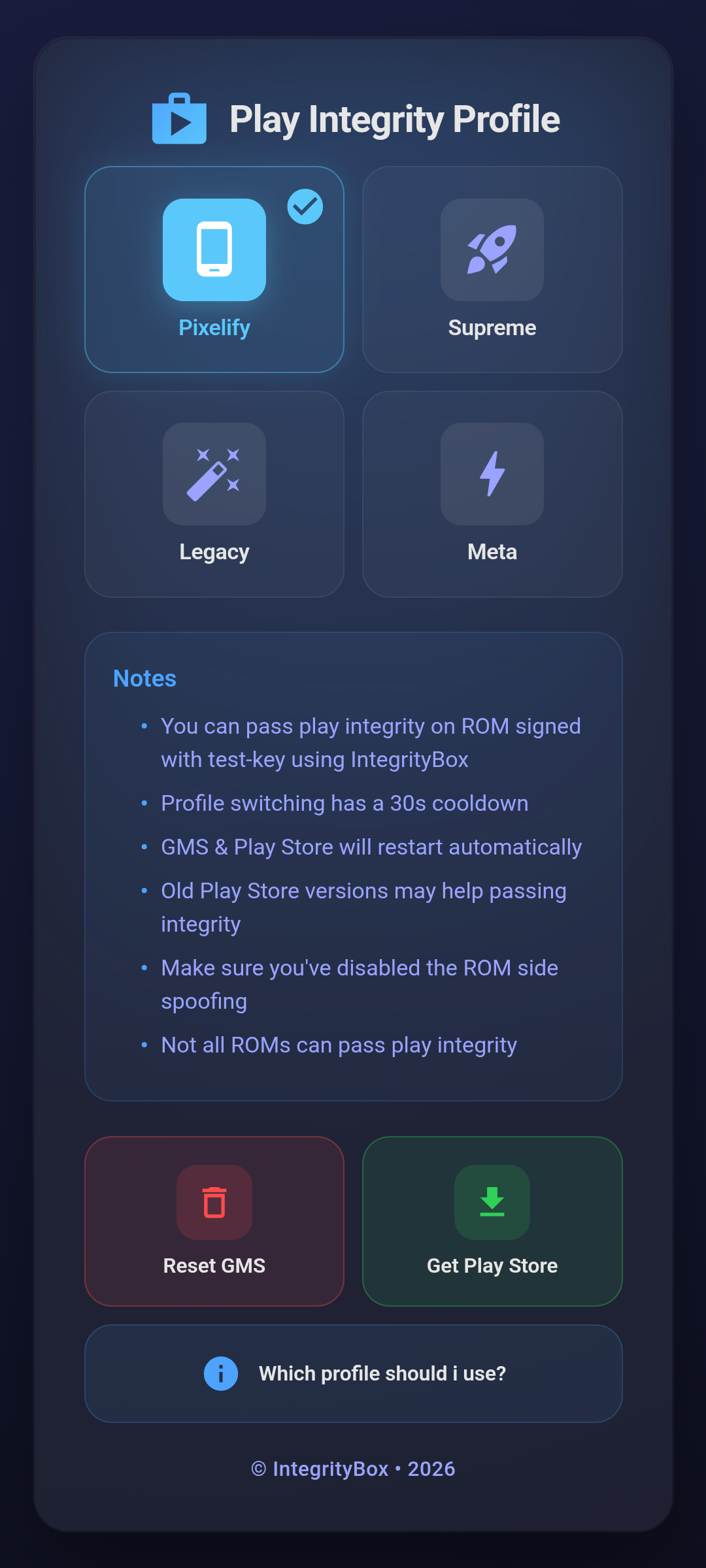 Integrity Profile |
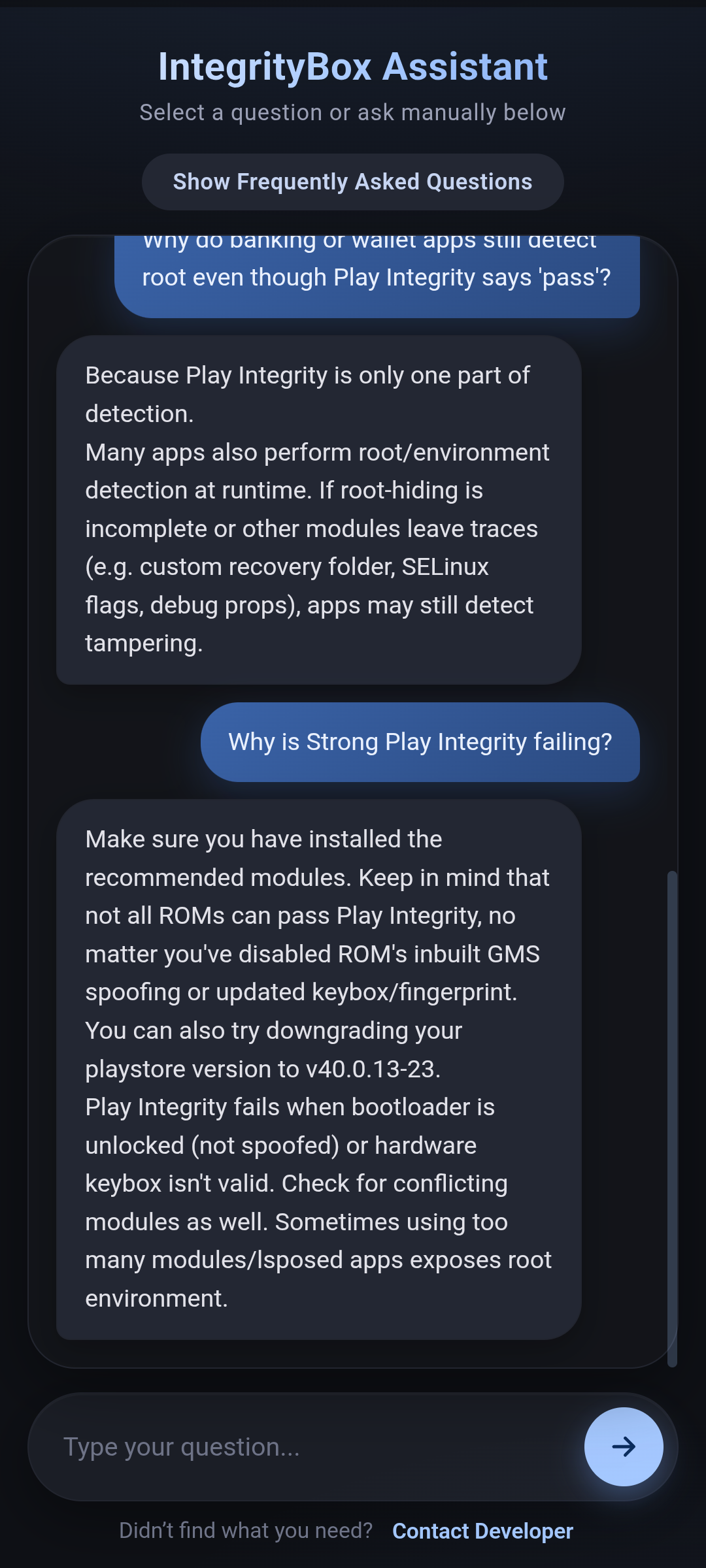 Assistant |
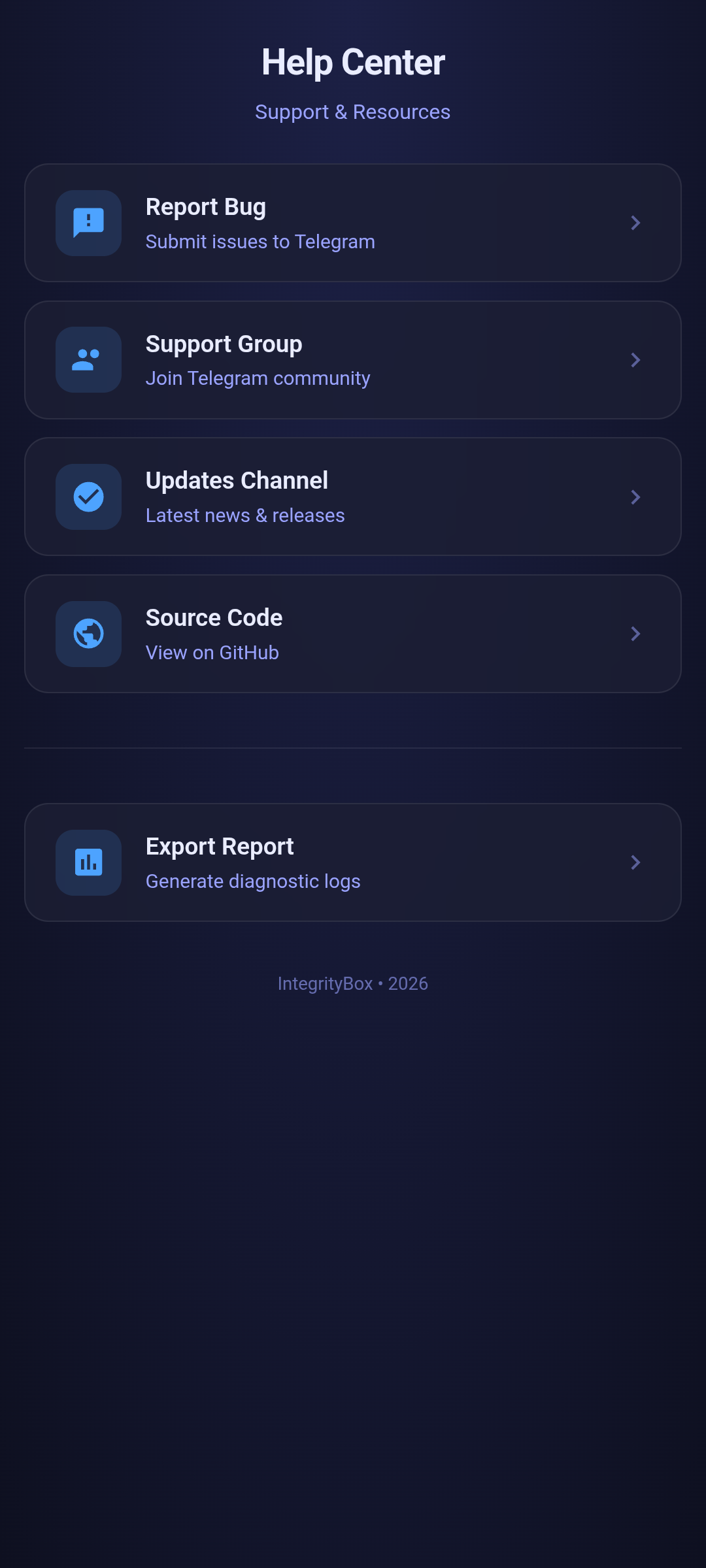 Help and Reports |
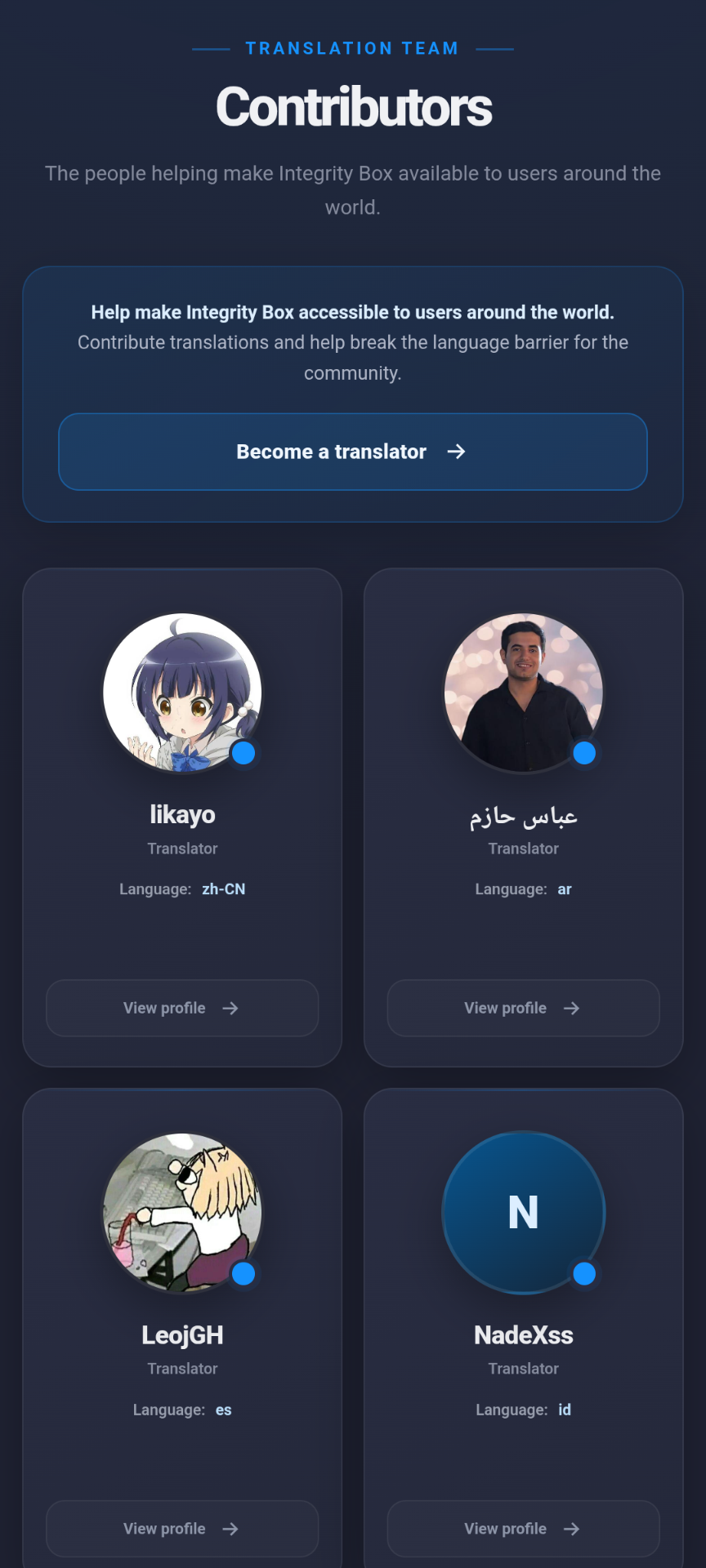 Translations |
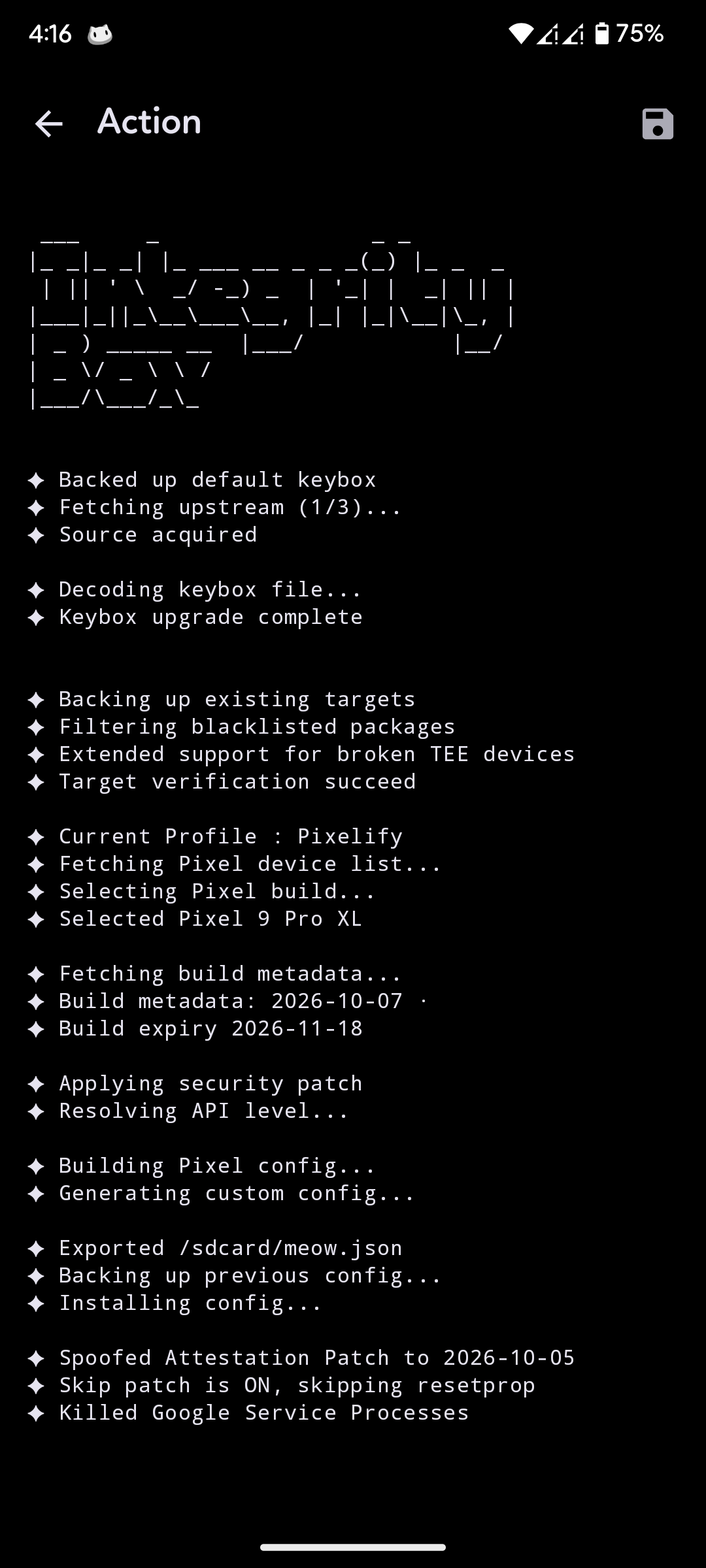 Action |
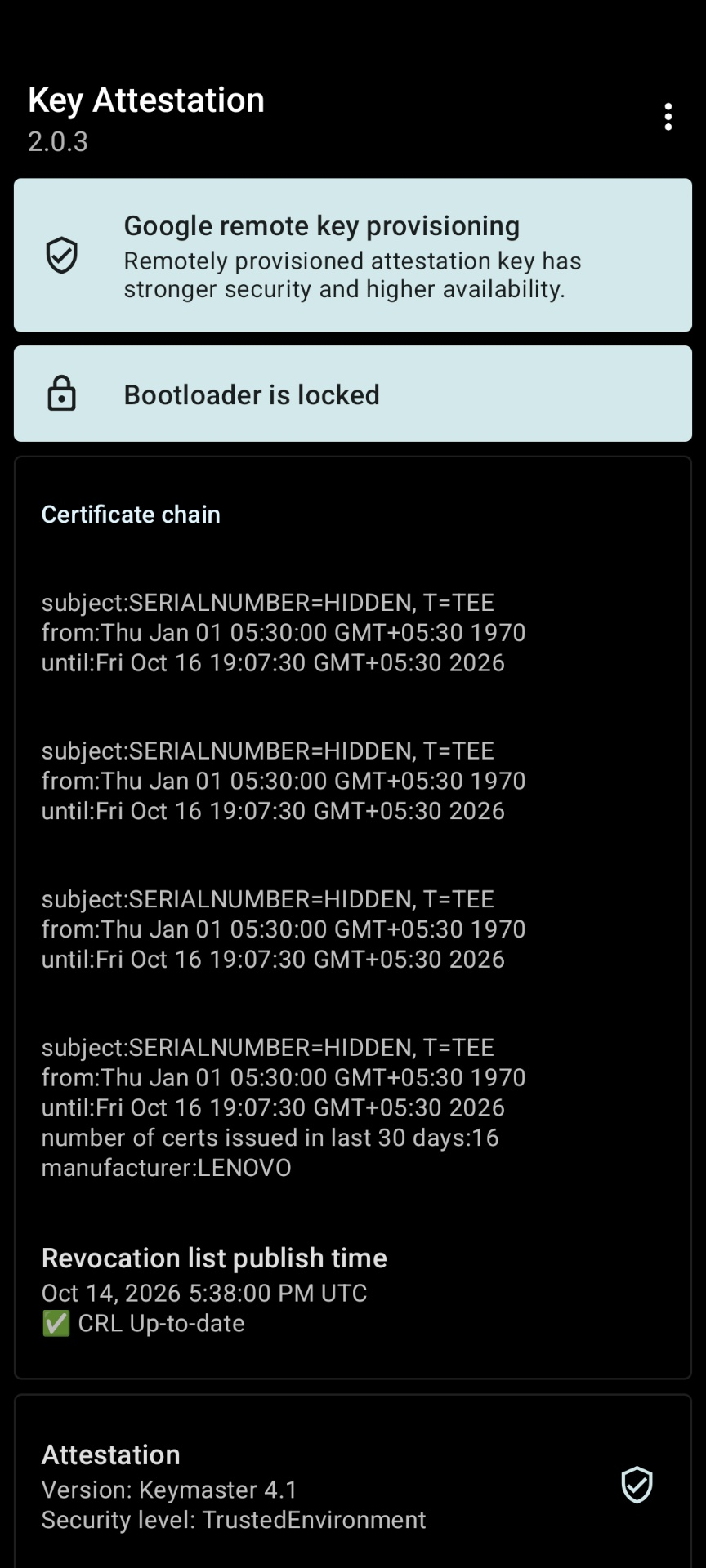 Key Attestation |
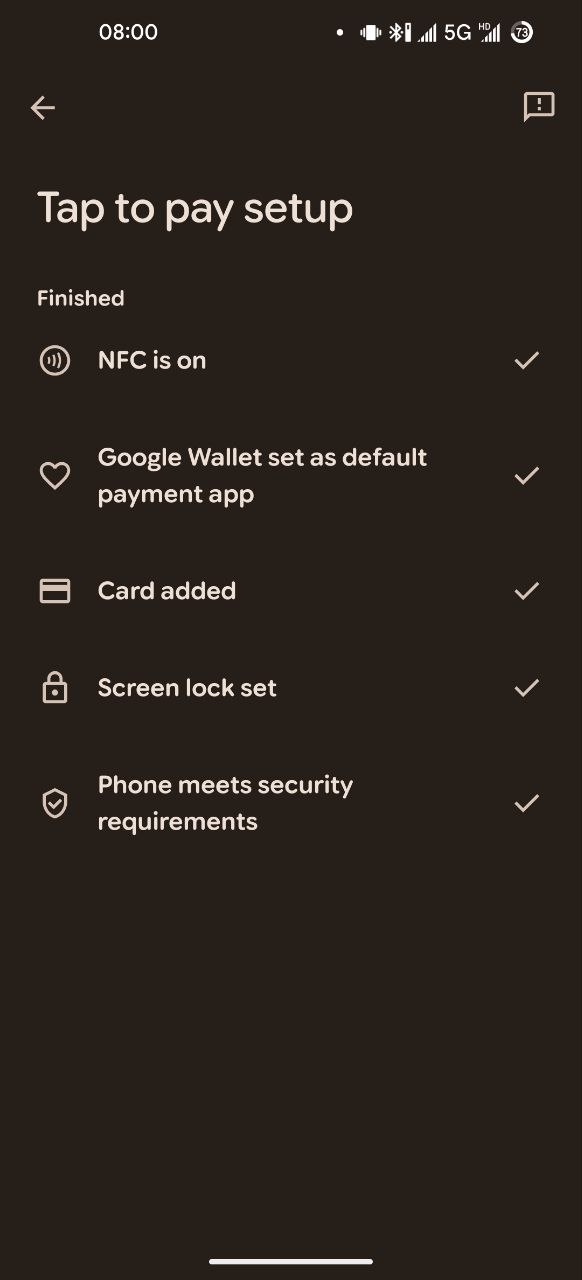 Wallet works |
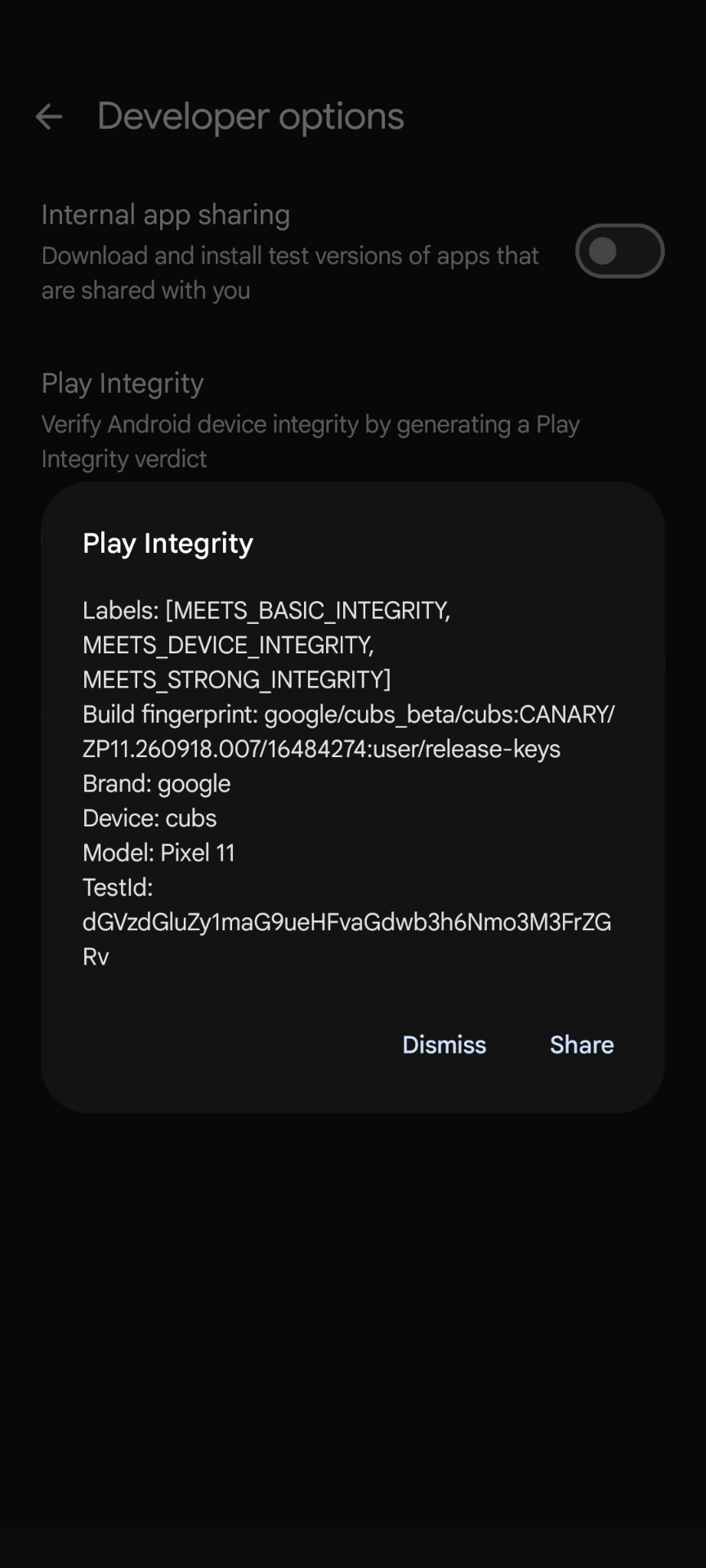 Play Integrity will pass |
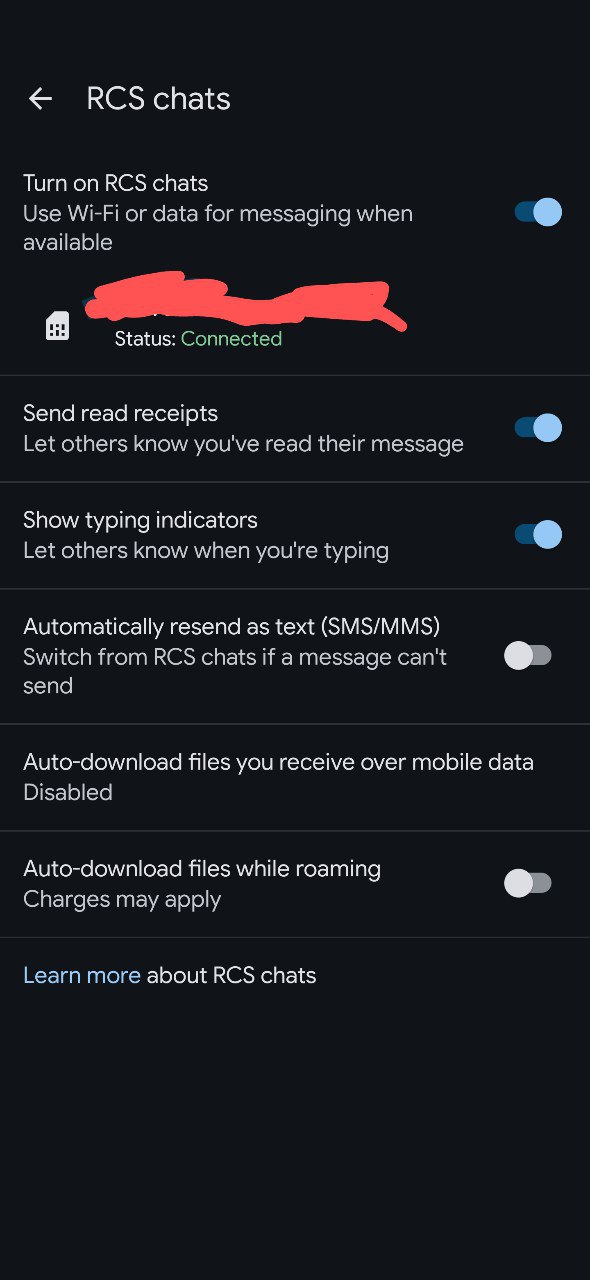 RCS Works |