
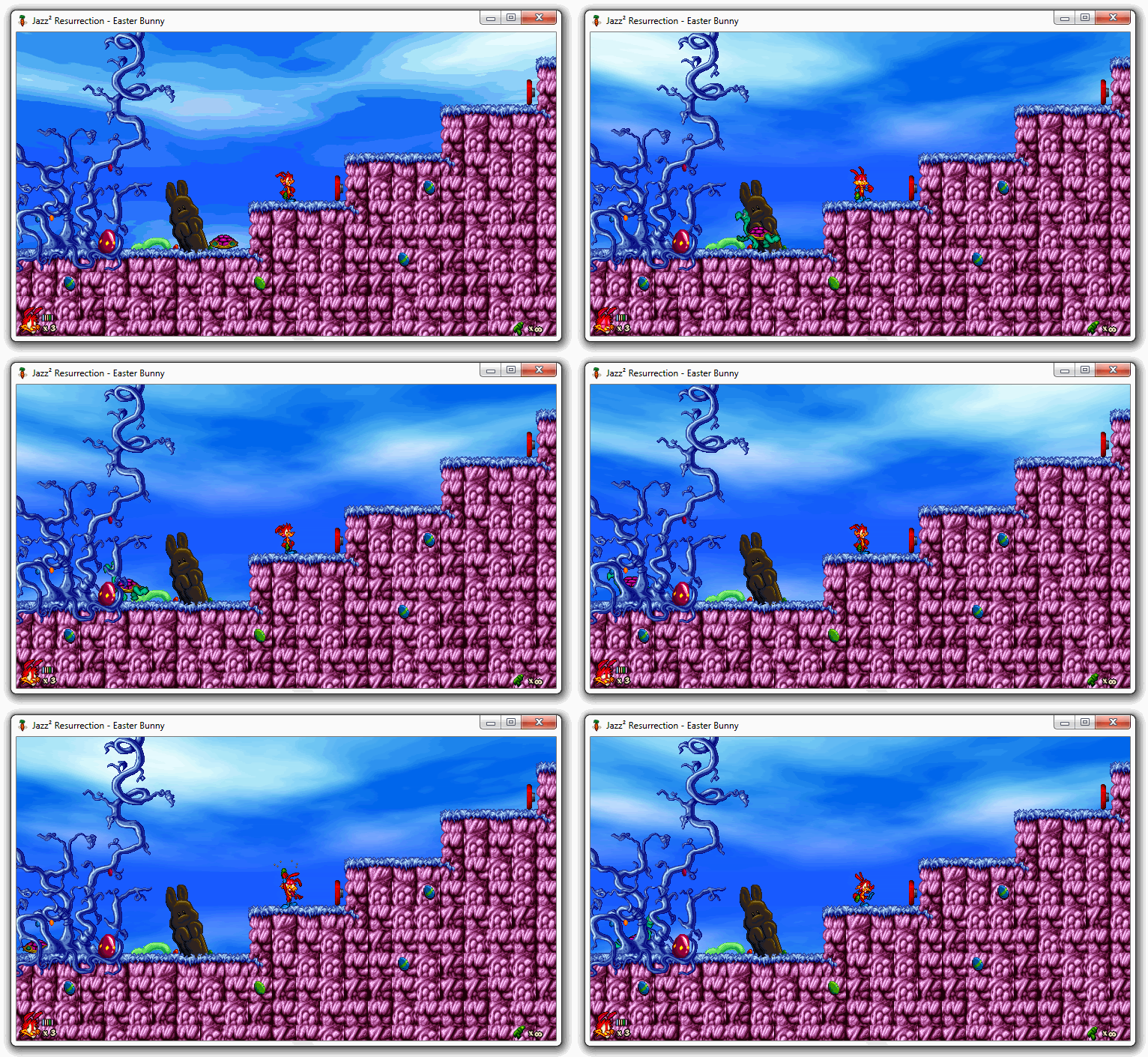
Jazz² Resurrection is reimplementation of the game Jazz Jackrabbit 2 released in 1998. Supports various versions of the game (Shareware Demo, Holiday Hare '98, The Secret Files and Christmas Chronicles). Also, it partially supports some features of JJ2+ extension and MLLE. This repository contains fully rewritten game in C++ with better performance and many improvements. Further information can be found here.






- Install Microsoft Visual C++ Redistributable
- Download the game
- Copy contents of original Jazz Jackrabbit 2 directory to
‹Game›\Source\ - Run
‹Game›\Jazz2.exe,‹Game›\Jazz2_avx2.exeor‹Game›\Jazz2_sdl2.exeapplication
‹Game› denotes path to Jazz² Resurrection. The game requires Windows 7 (or newer) and GPU with OpenGL 3.3 support. Game files should not be copied to Program Files. Cache is recreated during the intro cinematics on the first startup, so it can't be skipped. Also, the sound effects in the intro cinematics require the cache, so they will be missing the first time the game is started up.
- Download the game
- Install dependencies:
sudo apt install libcurl4 libglew2.2 libglfw3 libsdl2-2.0-0 libopenal1 libvorbisfile3 libopenmpt0- Alternatively, install provided
.debor.rpmpackage and dependencies should be installed automatically
- Alternatively, install provided
- Copy contents of original Jazz Jackrabbit 2 directory to
‹Game›/Source/- If packages are used, the files must be copied to
~/.local/share/jazz2/Source/or/usr/share/jazz2/Source/instead, please follow instructions of specific package- Installations predating this layout keep using
~/.local/share/Jazz² Resurrection/Source/, which is still detected
- Installations predating this layout keep using
- If packages are used, the files must be copied to
- Run
‹Game›/jazz2or‹Game›/jazz2_sdl2application- If packages are used, the game should be visible in application lists
‹Game› denotes path to Jazz² Resurrection. ~ denotes user's home directory. The game requires GPU with OpenGL 3.3 or OpenGL ES 3.0 (ARM) support. Cache is recreated during the intro cinematics on the first startup, so it can't be skipped. Also, the sound effects in the intro cinematics require the cache, so they will be missing the first time the game is started up.
Alternatively, you can use package repository for your Linux distribution:








- Download the game and install provided
.dmgapplication bundle - Copy contents of original Jazz Jackrabbit 2 directory to
~/Library/Application Support/Jazz² Resurrection/Source/ - Run the newly installed application
~ denotes user's home directory. Cache is recreated during the intro cinematics on the first startup, so it can't be skipped. Also, the sound effects in the intro cinematics require the cache, so they will be missing the first time the game is started up.
Alternatively, you can install it using 
brew trust deathkiller/jazz2 and brew install deathkiller/jazz2/jazz2
- The game is not on the App Store, build the application bundle from source (see below) and install it on the device from Xcode, or sideload the built
jazz2.app - Copy contents of original Jazz Jackrabbit 2 directory to
Jazz² Resurrection/Source/in the Files app (under On My iPhone / On My iPad), or through file sharing in Finder (or iTunes) - Run the newly installed application
The game requires iOS 14 (or newer) and runs on iPhone and iPad, in landscape orientation, with on-screen touch controls and game controllers. Cache is recreated during the intro cinematics on the first startup, so it can't be skipped. The log file Jazz2.log is written next to the Source directory.
- Download the game
- Install
Jazz2.apkorJazz2_x64.apkon the device - Copy contents of original Jazz Jackrabbit 2 directory to
‹Storage›/Android/data/jazz2.resurrection/files/Source/- On Android 11 or newer, you can Allow access to external storage in main menu, then you can use these additional paths:
‹Storage›/Games/Jazz² Resurrection/Source/‹Storage›/Download/Jazz² Resurrection/Source/
- On Android 11 or newer, you can Allow access to external storage in main menu, then you can use these additional paths:
- Run the newly installed application
‹Storage› usually denotes internal storage on your device. Content directory is included directly in APK file, no action is needed. The game requires Android 5.0 (or newer) and GPU with OpenGL ES 3.0 support. Cache is recreated during the intro cinematics on the first startup. Also, the sound effects in the intro cinematics require the cache, so they will be missing the first time the game is started up.
- Download the game
- Install
Jazz2.nropackage (custom firmware is needed) - Copy contents of original Jazz Jackrabbit 2 directory to
/Games/Jazz2/Source/on SD card - Run the newly installed application with enabled full RAM access
Cache is recreated during the intro cinematics on the first startup, so it can't be skipped. It may take more time, so white screen could be shown longer than expected. Also, the sound effects in the intro cinematics require the cache, so they will be missing the first time the game is started up.
- The game plays from a cartridge ROM, which has to carry the game content converted from an original Jazz Jackrabbit 2 installation – such ROM image can't be distributed, so it has to be built first, as described in the developer documentation
- Copy the resulting
jazz2.z64image onto an EverDrive-64 or SC64 flashcart- The image also boots directly in ares or simple64
- Run the ROM – the console must have an Expansion Pak installed
The game runs in 320×240 and the ROM is read-only, so nothing is ever converted or written on the console – the content has to be complete in the image, and the settings are saved to the cartridge EEPROM. The RDP has no programmable shading, so there is no post-processing tier and no rescale filters, there is no module music (sound effects only), and threads are unavailable, so local splitscreen is not available either. This port is experimental: the Nintendo 64 is by far the smallest machine the game runs on, it has not been performance-tuned for it, so the frame rate is well below the other consoles' and varies with what is on screen. The port has not been tested on real hardware yet.
- The game plays from a disc, which has to carry the game content converted from an original Jazz Jackrabbit 2 installation – such disc image can't be distributed, so it has to be built first, as described in the developer documentation
- Burn the resulting
jazz2.cdiimage with a tool that understands the Dreamcast's multi-session layout, or serve it from an optical-drive emulator such as GDEMU/MODE- The image also boots directly in Flycast, lxdream or redream
- Run the disc
The game runs in 640×480 and the disc is read-only, so nothing is ever converted or written on the console – the content has to be complete in the image. The PowerVR has no programmable shading, so there is no post-processing tier and no rescale filters. Module music plays through libxmp, which leaves the larger levels enough of the console's small heap to load in – the four .mo3 tracks are silent, everything else plays. The port has not been tested on real hardware yet.
- Download the game
- Copy contents of the provided
sddirectory to the root of an SD card or USB storage device - Copy contents of original Jazz Jackrabbit 2 directory to
sd:/apps/Jazz2/Source/on the same device- Alternatively, prepare the content in advance as described in the developer documentation to skip the conversion
- Run Jazz² Resurrection from the Homebrew Channel
The game reads its content from sd:/apps/Jazz2/Content/, so the storage device has to stay present – otherwise the game stops at Cannot access the SD card. The Hollywood GPU is fixed-function, so there is no post-processing tier and no rescale filters. Module music plays through libxmp, which costs a fraction of the memory libopenmpt needs on a console of this size – the four .mo3 tracks are silent, everything else plays. The port has not been tested on real hardware yet.
- The console can't convert the game data itself, so the content has to be prepared in advance from an original Jazz Jackrabbit 2 installation and can't be distributed – see the developer documentation
- Copy the resulting
sddirectory contents to an SD card in an SD Gecko (memory-card slot A) or an SD2SP2 adapter - Start
Jazz2/Jazz2.dolfrom Swiss
The game reads its content from carda:/Jazz2/Content/, which is slot A by definition. The console has 24 MB of memory and no second pool, which makes it the tightest of the two PowerPC targets – and the reason module music plays through libxmp here as well – and only GameCube controllers are read. Everything noted for the Wii applies here as well, including that the port has not been tested on real hardware yet.
- The console can't convert the game data itself in any reasonable time, so the content has to be prepared in advance from an original Jazz Jackrabbit 2 installation and can't be distributed – see the developer documentation
- Copy the resulting
sdmcdirectory contents to the root of the SD card (custom firmware or another way to start homebrew is needed)- For Azahar, copy them into the emulator's configured SD card directory instead
- Start
Jazz2from the Homebrew Launcher
The game runs on the top screen in its native 400×240 and reads its content from sdmc:/3ds/Jazz2/Content/; the bottom screen shows the startup log. Sound needs the DSP firmware that every console running homebrew has at sdmc:/3ds/dspfirm.cdc (dump it with DSP1 once), without it the game runs silently. New 3DS runs the game at its full 804 MHz clock, on an Old 3DS the frame rate drops in busy scenes. The port has been tested in the Azahar emulator only, not on real hardware yet.
- Download the game
- Copy the provided
PSP/GAME/Jazz2directory to the memory stick at exactly that path (custom firmware is needed)- For PPSSPP, copy it into the emulator's configured memory stick instead
- Copy contents of original Jazz Jackrabbit 2 directory to
ms0:/PSP/GAME/Jazz2/Source/- Alternatively, prepare the content in advance as described in the developer documentation to skip the conversion
- Run the newly installed application
The game runs in the native 480×272 and reads its content from ms0:/PSP/GAME/Jazz2/Content/. Module music plays through libxmp rather than libopenmpt, which is too heavy for this CPU – the four .mo3 tracks are silent, everything else plays – and everything is mixed at 22 kHz by default, which can be lowered to 11 kHz with the Sample Rate option in Options > Sounds. Online multiplayer, the public server list and text entry through the console's on-screen keyboard work; the network connection is joined on the first use of the network. Besides Wi-Fi, the game also plays over the console's ad hoc (local wireless) mode between PSPs in reach – pick Ad hoc in the Connection row when creating a server, and switch the Connect To Server list to ad hoc with Left/Right to find it. The port has been tested under Adrenaline on a PlayStation Vita, not on a PlayStation Portable itself yet.
- As on the Dreamcast, the game plays from a disc that has to carry the converted game content, so the
jazz2.isoimage can't be distributed either and has to be built first – see the developer documentation - Burn the resulting image to a disc, or load it in PCSX2
- It can equally be run from an SD card in an MX4SIO adapter: copy the ELF and the content tree to
mass0:/Games/Jazz2/, and the game reads and saves there (a card is shared storage, so the game keeps to a directory of its own – the same layout it uses on the Switch)
The game runs in NTSC 640×448, which a television shows as 4:3, and the picture is composed for that ratio rather than for the framebuffer's own. Sound plays through audsrv on the SPU2, with module music through libxmp rather than libopenmpt, which doesn't compile for this toolchain – the four .mo3 tracks are silent, everything else plays – mixed at 22 kHz by default, which the Sample Rate option in Options > Sounds can change. Settings and progress are saved to a memory card, or to the SD card when the game runs from one. Threads are unavailable, so local splitscreen is not available, and the Graphics Synthesizer is fixed-function, so there are no rescale filters.
- Download the game
- Install
Jazz2.pkgpackage (custom firmware is needed)- Alternatively, run the unsigned
Jazz2.selfon a CFW console or in RPCS3, which requires the PlayStation 3 firmware installed once
- Alternatively, run the unsigned
- Copy contents of original Jazz Jackrabbit 2 directory to
Source/next toEBOOT.BINof the installed package (/dev_hdd0/game/JAZZ20000/USRDIR/Source/)- Alternatively, prepare the content in advance as described in the developer documentation to skip the conversion
- Run the newly installed application
Cache and save data are written to /dev_hdd0/game/JAZZ20000/USRDIR/. Unlike the older consoles the RSX is a programmable part, so the whole post-processing chain is available – except three of the heavier rescale filters, which are hidden in the options. Threads are unavailable, so local splitscreen is not available either. The port has not been tested on real hardware yet.
- Download the game
- Install
Jazz2.vpkpackage with VitaShell or over FTP (custom firmware is needed) - Extract
libshacccg.suprxfrom the console firmware tour0:/data/, shaders are compiled on the console - Copy contents of original Jazz Jackrabbit 2 directory to
ux0:/data/jazz2/Source/ - Run the newly installed application
The Content directory is included directly in the VPK file, no action is needed. Cache is recreated in ux0:/data/jazz2/Cache/ during the intro cinematics on the first startup, so it can't be skipped. Also, the sound effects in the intro cinematics require the cache, so they will be missing the first time the game is started up. The frame is rendered at half of the panel's resolution by default, which keeps the pixel art crisp and the frame rate up – the Rendering Resolution option in Options > Graphics offers 60% and 75% as well. See the developer documentation for details.
- Download the game for the particular system – AmigaOS 3.x, AmigaOS 4.1 or MorphOS
- Copy contents of the archive – the
Jazz2executable next toContent/– onto the Amiga's hard disk, or mount the directory as a hard drive in an emulator - Copy contents of original Jazz Jackrabbit 2 directory to
Source/next to the executable- Alternatively, prepare the content in advance as described in the developer documentation to skip the conversion, which takes far longer on these machines than on a desktop
- Run
Jazz2
Three systems are supported from three separate builds. AmigaOS 3.x needs a 68040/68060 with an FPU and an RTG graphics card (Picasso96 or CyberGraphX) – PiStorm/Emu68 and Apollo Vampire machines are the practical targets – and picks a performance preset by measuring the machine at startup; it has no usable graphics hardware, so it renders on the CPU. AmigaOS 4.1 and MorphOS are PowerPC builds that reach the display through SDL2, which on MorphOS means sdl2.library has to be installed first. Both render in hardware through the fixed-function OpenGL each system provides – MiniGL over Warp3D on AmigaOS 4, TinyGL on MorphOS – so a 3D driver for the graphics card has to be installed; a build made with -D NCINE_PREFERRED_RHI=Software renders on the CPU instead. There are no graphics shaders on any of these systems, so the post-processing tier and the rescale filters are unavailable. Only the classic Amiga and MorphOS builds have been run so far, both under emulation and both on the CPU renderer; none of the three has been tested on real hardware.
- Go to https://de4th.dev/jazz2/wasm/
- Import episodes from original Jazz Jackrabbit 2 directory in main menu to unlock additional content
The game requires browser with WebAssembly and WebGL 2.0 support – usually any modern web browser.
- Copy
jazz2_libretro.so(andjazz2_libretro.info, if provided) to the frontend's cores directory - Copy the
Content/directory next to the game files, then copy contents of original Jazz Jackrabbit 2 directory toSource/beside it –Cache/is generated next to them- Alternatively, place both in the frontend's system directory as
‹System›/jazz2/Content/and‹System›/jazz2/Source/
- Alternatively, place both in the frontend's system directory as
- Load any file from
Source/(for exampleAnims.j2a) as content, or start the core without content if‹System›/jazz2/Content/exists
Settings, progress, highscores and the resumable state are written to ‹Saves›/jazz2/ in the frontend's saves directory. The core exposes the RetroPad as a gamepad (up to 4 players, local splitscreen included) and renders at 720×405, the native logical resolution of the game, which the frontend scales to the screen – so its video shaders and scaling options replace the in-game Rescale Mode. Save states use the game's own level-resume snapshot, so they are not frame-exact – netplay, run-ahead, rewind and reset are not supported. Cache is recreated during the intro cinematics on the first startup, so it can't be skipped.
- Download the game
- Install
Jazz2.cercertificate if needed (the application is self-signed) - Install
Jazz2.msixbundlepackage - Run the newly installed application
- Copy contents of original Jazz Jackrabbit 2 directory to destination shown in the main menu
-
Alternatively, copy the files to
\Games\Jazz² Resurrection\Source\on an external drive to preserve settings across installations, the application must be set toGametype andNTFSis the recommended filesystem -
On
NTFS, the ALL APPLICATION PACKAGES group must be granted full access to that directory, otherwise the application can't read the game files or write its settings there – attach the drive to a Windows PC and run in Command Prompt or PowerShell as administrator:icacls "D:\Games\Jazz² Resurrection" /grant "*S-1-15-2-1:(OI)(CI)(F)" /T
where
D:is the external drive.*S-1-15-2-1is the SID of ALL APPLICATION PACKAGES, so the command works regardless of system language. Filesystems that have no permissions at all, such asexFAT, need no such step
-
- Run the application again
Cache is recreated during the intro cinematics on the first startup, so it can't be skipped. It may take more time, so white screen could be shown longer than expected. Also, the sound effects in the intro cinematics require the cache, so they will be missing the first time the game is started up.
- Pull the image, which is available for
amd64andarm64docker pull ghcr.io/deathkiller/jazz2-server:latest
- Copy contents of original Jazz Jackrabbit 2 directory to
./Source/ - Copy
ServerConfiguration.jsonto./Config/Jazz2.Server.configand adjust it, at least the playlist- The directory must be writable by uid 1000, the unprivileged user the server runs as
- Run the container
docker run -d -i --name jazz2-server --restart unless-stopped \
    -p 7438:7438/udp -p 7438:7438/tcp \
    -v "$PWD/Source:/app/Source:ro" \
    -v "$PWD/Config:/app/Config" \
    -v jazz2-cache:/app/Cache \
    ghcr.io/deathkiller/jazz2-server:latest
The image contains only the headless server, contents of original Jazz Jackrabbit 2 directory are never part of it. Besides latest, every release is tagged also as X.Y and X.Y.Z to pin a particular version, and edge tracks the current state of the master branch. Game files are converted into the jazz2-cache volume on the first start, so the first startup takes longer. docker attach jazz2-server opens the server console, docker stop shuts the server down cleanly, disconnecting the peers and delisting the server from the online server list. ServerAddressOverride has to be set for a public server, because the container sees only its own address on the Docker network. The docker-compose.yml in this repository describes the same setup declaratively, including several servers running on one host, and docker build -t jazz2-server . builds the image from sources instead of pulling it. See the developer documentation for details.
This section contains only a brief explanation of the build process. For a more detailed explanation, including build configuration parameters, please refer to the developer documentation.
- Build dependencies will be downloaded automatically by CMake
- Can be disabled with
NCINE_DOWNLOAD_DEPENDENCIESoption, then download build dependencies manually to.\Libs\
- Can be disabled with
- Build the project with CMake
- Alternatively, download build dependencies to
.\Libs\, open the solution in Microsoft Visual Studio 2019 (or newer) and build it
- Alternatively, download build dependencies to
- Build dependencies will be downloaded automatically by CMake
- Can be disabled with
NCINE_DOWNLOAD_DEPENDENCIESoption, then download build dependencies manually to./Libs/ - System libraries always have higher priority, there is no need to download them separately if your system already contains all dependencies
- In case of build errors, install following packages (or equivalent for your distribution):
libgl1-mesa-dev libglew-dev libglfw3-dev libsdl2-dev libopenal-dev libopenmpt-dev libcurl4-openssl-dev zlib1g-dev
- Can be disabled with
- Build the project with CMake
- Build dependencies will be downloaded automatically by CMake
- Can be disabled with
NCINE_DOWNLOAD_DEPENDENCIESoption, then download build dependencies manually to./Libs/
- Can be disabled with
- Build the project with CMake
- Install Xcode (the Command Line Tools alone have no iOS SDK) on a Mac
- Build dependencies (SDL2, OpenAL Soft, Ogg/Vorbis and libcurl) will be downloaded and compiled from source automatically by CMake
- Build the project with CMake for the
iOSsystem, for example with the Xcode generator, which also signs and deploys the application to a device:
cmake -B build -G Xcode -D CMAKE_SYSTEM_NAME=iOS -D CMAKE_OSX_ARCHITECTURES=arm64 -D CMAKE_OSX_DEPLOYMENT_TARGET=14.0 -D NCINE_IOS_DEVELOPMENT_TEAM=<Apple Developer team ID>- For the iOS Simulator, use
CMAKE_OSX_SYSROOT=iphonesimulatorwith the Mac's own architecture instead, see the documentation for details
- Install Android SDK (preferably to
../android-sdk/) - Install Android NDK (preferably to
../android-ndk/) - Install Gradle (preferably to
../gradle/) - Build dependencies will be downloaded automatically by CMake
- Can be disabled with
NCINE_DOWNLOAD_DEPENDENCIESoption, then download build dependencies manually to./Libs/
- Can be disabled with
- Build the project with CMake and
NCINE_BUILD_ANDROIDoption
- Install devkitPro toolchain
- Build the project with CMake and devkitPro toolchain
cmake -D CMAKE_TOOLCHAIN_FILE=${DEVKITPRO}/cmake/Switch.cmake -D NCINE_PREFERRED_BACKEND=SDL2The game runs on Nintendo 64, Sega Dreamcast, Nintendo Wii, Nintendo GameCube, Nintendo 3DS, PlayStation Portable, PlayStation 2, PlayStation 3 and PlayStation Vita as well. Each of them is cross-compiled with its own SDK and CMake toolchain file, most of them have a bespoke window and rendering backend for their fixed-function graphics hardware, and on most of them the game content has to be prepared in advance with AssetPacker and passed to the build with NCINE_CONTENT_DIR option (a few, such as the Wii, PSP, PS3 and Vita, can also convert the original game data directly on the device).
Please refer to the console documentation for the toolchain, build, packaging, deployment and logging steps of each console.
The game also runs on AmigaOS 3.x (68k), AmigaOS 4.1 and MorphOS (PowerPC). Each is cross-compiled with its own CMake toolchain file in cmake/toolchains/ and stages a ready-to-run directory into build/<target>/dist/; the two PowerPC SDKs come as container images, so only the m68k toolchain has to be installed. The classic Amiga has a window and input backend of its own (Intuition + RTG) and an AHI audio backend; the PowerPC systems use SDL2 and render through the fixed-function OpenGL each of them provides.
Please refer to the Amiga documentation for the toolchains, the hardware each build targets, the system quirks each of them works around, and how they can be run under emulation.
- Install Emscripten SDK (preferably to
../emsdk/)
cd ..
git clone https://github.com/emscripten-core/emsdk.git
cd emsdk
./emsdk install latest
./emsdk activate latest- Build dependencies will be downloaded automatically by CMake
- Can be disabled with
NCINE_DOWNLOAD_DEPENDENCIESoption
- Can be disabled with
- Copy required game files to
./Content/directory – the files must be provided in advance - Build the project with CMake and Emscripten toolchain
- Build the project with CMake and
NCINE_BUILD_LIBRETROoption, the result is ajazz2_libretroshared library instead of an executable, no window backend (GLFW, SDL2 or Qt5) is needed
cmake -D NCINE_BUILD_LIBRETRO=ON- By default the core uses the software renderer, so it runs on any frontend. Add
-D NCINE_PREFERRED_RHI=OpenGLto render on the GPU instead – such core requires OpenGL ES 3.0 and a frontend context obtained throughSET_HW_RENDER
- Build dependencies will be downloaded automatically by CMake
- Can be disabled with
NCINE_DOWNLOAD_DEPENDENCIESoption, then download build dependencies manually to.\Libs\
- Can be disabled with
- Run CMake to create Microsoft Visual Studio 2019 (or newer) solution
cmake -D CMAKE_SYSTEM_NAME=WindowsStore -D CMAKE_SYSTEM_VERSION="10.0"This project is licensed under the terms of the GNU General Public License v3.0 and uses extensively modified nCine game engine.